Contents
 Claude
  ChatGPT
  Perplexity
  Google AI
 Contents
CRF (Constant Rate Factor) in FFmpeg is one of the most useful options for encoding video. It allows you to give the encoder a quality target and lets it determine how much bitrate each frame needs, so you’re not guessing numbers or over-compressing the video.
This guide covers what CRF is, how the scale works across H.264, H.265, and VP9, and which value to use for different scenarios. We will also show you how to test different CRF settings with practical FFmpeg commands.
TL;DR:
CRF (Constant Rate Factor) is FFmpeg’s quality-based encoding mode. It lets you set a quality target, and the encoder handles bitrate automatically. Start with -crf 23 for H.264 and -crf 28 for H.265. Lower values mean better quality and larger files, while higher values mean smaller files with more compression.
What Is CRF in FFmpeg?
CRF in FFmpeg is a quality-based encoding mode that lets you set a target video quality without specifying a fixed bitrate. The encoder automatically adjusts the bitrate based on the complexity of each frame to maintain consistent visual quality throughout the video. For instance, a fast-moving action scene gets more bits, while a static scene gets fewer.
FFmpeg constant rate factor is different from the two other common encoding modes:
CBR (Constant Bitrate): Every second of video gets the same number of bits, regardless of complexity. Simple scenes get over-served and complex ones get under-served.
ABR (Average Bitrate): You set a target average, and the encoder tries to hit it across the whole file. While it’s more predictable than CRF for file size, it’s less flexible for quality.
CRF is a great option for balancing video quality and file size. You don’t have to worry about visual quality and file size targets; the encoder adjusts bitrate automatically to achieve them.
How the CRF Scale Works
The CRF scale depends on the codec you’re using. Here’s how the three main codecs in FFmpeg handle CRF:
- H.264 (libx264): 0 (lossless) to 51 (worst). The default is 23.
- H.265/HEVC (libx265): 0 to 51. Default is 28.
- VP9 (libvpx-vp9): 0 to 63. Must be paired with
-b:v 0to activate CRF mode.
Lower values mean higher quality and larger files, while higher values mean smaller files with more visible compression artifacts.
Here’s what the CRF ranges mean in practice for H.264:
| CRF Range | Quality Level | Typical Use Case |
|---|---|---|
| 0 | Lossless | Archiving (very large files) |
| 18-23 | Visually lossless | High-quality deliverables |
| 23-28 | Good (default zone) | Web delivery, general encoding |
| 28-35 | Acceptable | Streaming, bandwidth-constrained |
| 35-51 | Poor/blocky | Avoid unless file size is critical |
One important thing to keep in mind is that CRF values are not interchangeable between codecs. A CRF of 23 in H.264 does not mean the same thing as CRF 23 in H.265. Each codec has its own quality curve.
Basic FFmpeg CRF Command
Here are the basic commands for each codec:
H.264
ffmpeg -i input.mp4 -c:v libx264 -crf 23 output.mp4
H.265 / HEVC
ffmpeg -i input.mp4 -c:v libx265 -crf 28 output.mp4
VP9
ffmpeg -i input.mp4 -c:v libvpx-vp9 -crf 30 -b:v 0 output.webm
CRF only works with specific codec implementations; libx264, libx265, and libvpx-vp9 support it. Some codecs don’t support it. We’ve used the -c:v flag in the above commands to set the video codec.
For VP9, -b:v 0 is required to put the encoder into constrained quality (CRF) mode. Without it, the -crf flag is effectively ignored. And as we discussed in the previous section, the -crf flag is codec-specific. A value that works for H.264 will not produce the same results in H.265. So always verify that you’re using the right value for the specific codec.
Choosing the Right CRF Value
Choosing the right FFmpeg CRF value is important to get a high-quality output video. The defaults 23 for H.264 and 28 for H.265 are good starting points. But these values are not always the right option. Different content and use cases require different values.
Low-motion content, such as screencasts, slide recordings, and lecture videos, doesn’t change much from frame to frame. That means the encoder doesn’t need as many bits to maintain quality, so you can use a higher FFmpeg CRF value without impacting the quality.
Fast or high-motion content, such as sports, action sequences, and fast camera pans, changes a lot between frames. Such content needs a lower CRF to avoid motion blocking and smearing artifacts.
Here’s a practical guide for picking a CRF by use case:
| Use Case | H.264 CRF | H.265 CRF |
|---|---|---|
| Lossless / near-lossless | 0–18 | 0–20 |
| High-quality delivery | 18–22 | 22–26 |
| Web / general use | 23–26 | 27–30 |
| Streaming / mobile | 27–32 | 30–35 |
| Screencasts/slides | 28–35 | 32–38 |
The best approach is to pick a value from the appropriate range, encode a short clip (30–60 seconds), and watch it at full resolution before doing the full encode. If you see blocking or smearing in motion, drop the CRF by 2–3. If the file is larger than you need and the quality looks fine, raise it.
CRF and Preset — How They Work Together
The -preset flag controls encoding speed vs compression efficiency. Basically, it lets you choose between faster encoding or better compression. It does not directly change video quality, but it affects how efficiently the encoder compresses the video.
Slower presets take longer to encode but produce smaller files at the same CRF level. A faster preset encodes quickly but with less efficient compression, so it gives a larger file for the same quality.
Here are FFmpeg’s available presets:
- ultrafast
- superfast
- veryfast
- faster
- fast
- medium
- slow
- slower
- veryslow
It’s best to specify your preset rather than relying on the default:
- Use
-preset slowfor high-quality delivery where you want the best quality-to-size ratio. - Use
-preset fastor-preset veryfastfor development, previews, or workflows where turnaround time matters more than file size. - Use
-preset veryslowfor archiving.
Here’s an example of using CRF and preset together:
ffmpeg -i input.mp4 -c:v libx264 -crf 23 -preset slow output.mp4
CRF vs Bitrate Encoding — When to Use Which
When encoding videos with FFmpeg, an important decision you need to make is whether to control quality or bitrate, depending on your requirements.
It’s recommended to use CRF when output quality matters more than file size predictability. But, if you want a specific bitrate and predictable file size, you can opt for bitrate-based encoding, which focuses on controlling how much data is used, rather than targeting a specific quality level.
There are multiple bitrate-based encoding methods:
- ABR (Average Bitrate): Aims to reach a target bitrate on average across the entire video.
- CBR (Constant Bitrate): Attempts to keep the bitrate fixed at all times.
If you need both good quality and a predictable file size, you can use 2-pass encoding.
The table below shows a quick comparison between different encoding methods:
| Encoding Method | Main Goal | File Size Predictability | Quality Consistency | Typical Use Cases |
|---|---|---|---|---|
| CRF | Maintain constant visual quality | Low | High | Web video, archives, general encoding |
| ABR | Hit an average bitrate | Medium | Medium | Size-restricted uploads |
| CBR | Maintain constant bitrate | High | Lower | Live streaming, broadcast |
| 2-Pass ABR | Balanced quality with exact size | High | High | Final delivery files |
For most video encoding tasks, CRF is the simplest and most effective option. It automatically balances bitrate and quality without requiring you to estimate a target bitrate. But when you need to have a specific file size or bandwidth is limited, you can use bitrate-based methods like ABR, CBR, or 2-pass encoding.
CRF for H.265 / HEVC
FFmpeg CRF H265 (HEVC) uses the same CRF flag or parameter as H.264, but the CRF value scale is different. CRF 28 in H.265 is roughly equivalent to CRF 23 in H.264 in terms of perceived quality. That’s because H.265 is more efficient, which means it provides similar visual quality with half the bitrate and smaller file sizes.
Here is an example command:
ffmpeg -i input.mp4 -c:v libx265 -crf 28 -preset slow output.mp4
To use H.265, your FFmpeg build needs to include libx265. You can check it with the command below:
Powershell:
ffmpeg -encoders | Select-String 265
Linux:
ffmpeg -encoders | grep 265
If you see libx265 in the output, you’re good. If not, you’ll need to install a version of FFmpeg compiled with H.265 support. One thing to know is that H.265 encoding is quite slower than H.264 at the same preset. If encoding speed matters, you can raise the preset speed or use H.264.
Common CRF Mistakes and How to Avoid Them
Using the same CRF value across codecs.
CRF values are not interchangeable between codecs, so CRF 23 in H.264 is not the same as CRF 23 in H.265. Always use the codec-appropriate defaults as a starting point (23 for H.264, 28 for H.265).
Confusing CRF with constant quantizer (QP)
CRF encoding adjusts the bitrate frame-by-frame based on the complexity of the scene. QP applies an absolute value throughout the video, which often results in inefficient compression.
CRF always produces better results for the same file size because it uses appropriate bits for each scene.
Not specifying -preset explicitly
The default preset is medium, which is fine, but it’s recommended to explicitly set the preset to ensure consistent results.
Expecting CRF to control file size
FFmpeg CRF controls quality, not file size. It produces consistent visual quality, not consistent file size. The size of the output file depends on the complexity of the video. For example, a complex video encoded at CRF 23 will be larger than a simple one encoded at the same setting.
Ignoring audio settings
CRF only controls video quality. If you don’t specify an audio codec and bitrate, FFmpeg will pick defaults that may not match your requirements. For example, you can add the following audio command for web delivery:
-c:a aac -b:a 128k
Real-World CRF Examples
Web Video Delivery
If you’re encoding videos for a website, it’s recommended to use the following command:
ffmpeg -i input.mp4 -c:v libx264 -crf 23 -preset slow -c:a aac -b:a 128k -movflags +faststart output.mp4
The -movflags +faststart flag moves the MP4 metadata to the front of the file so it can start playing before it’s fully downloaded.
When to use:
- Uploading videos to websites, such as blog embeds, product videos, or landing pages
- Hosting downloadable MP4 files
Screencast / Lecture Compression (Low Motion)
Low-motion content encodes very efficiently. You can use a higher CRF for such videos, because the video doesn’t change much from frame to frame.
You can use the following settings:
ffmpeg -i lecture.mov -c:v libx264 -crf 28 -preset veryslow -tune animation -r 10 -c:a aac -b:a 48k -movflags +faststart output.mp4
-tune animation optimizes encoding for content with flat color regions and sharp edges, which is typical of screencasts, slide recordings, and lecture videos.
When to use:
- Screen recordings
- Slide presentations
- Lecture videos
High-Quality H.265 Archive
For archiving source material you may re-encode later, H.265 at a low CRF gives you excellent quality at a fraction of the file size of high-bitrate H.264.
ffmpeg -i input.mp4 -c:v libx265 -crf 22 -preset slow -c:a copy output.mp4
-c:a copy passes the audio through without re-encoding.
When to use:
- Archiving camera footage
- Long-term storage
- High-quality video libraries
If you want to learn how to use FFmpeg in Node.js, check out our detailed guide.
Programmatic Video Encoding Without Managing CRF
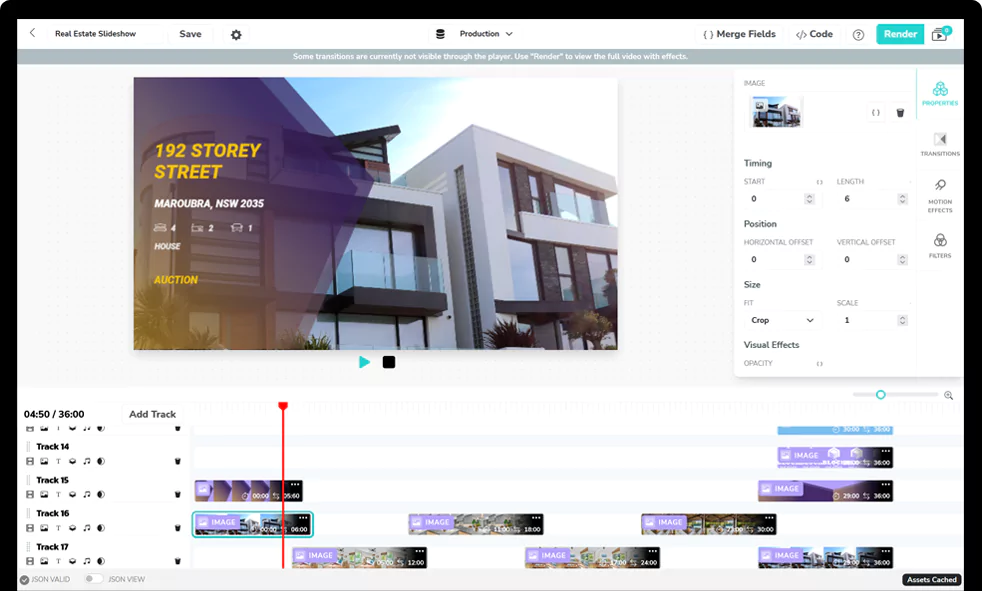
When you’re encoding a few videos locally, adjusting CRF, presets, codec flags, and container settings is manageable. But when you need to process hundreds or thousands of videos at scale, managing FFmpeg flags across environments becomes challenging. This is where you can use a tool like Shotstack that offers programmatic video encoding through an API.
Shotstack’s video rendering API handles encoding quality configuration automatically, so you don’t need to manage raw FFmpeg parameters. You define the output format and resolution via a JSON API call, and the platform handles the underlying encoding configuration.
With Shotstack, you can render videos at scale without any manual configurations. Sign up for a free API key today.
FAQs
How much smaller are H.265 files compared to H.264 at the same CRF?
At equivalent perceptual quality, H.265 files are typically 30–50% smaller than H.264. The default CRF values reflect this: CRF 28 in H.265 produces roughly the same visual quality as CRF 23 in H.264, but the output file will be about half the size. The efficiency gap is most pronounced at higher resolutions. At 4K, H.265 savings often reach 50% or more. The trade-off is encoding time: H.265 is significantly slower than H.264 at the same preset.
Does CRF work with GPU hardware encoders like NVENC or VideoToolbox?
No. GPU encoders such as NVIDIA NVENC (h264_nvenc, hevc_nvenc) and Apple VideoToolbox (h264_videotoolbox, hevc_videotoolbox) do not support the -crf flag. It will be silently ignored or cause an error. Each hardware encoder has its own quality control parameter:
- NVENC: use
-cq(0–51, lower is better quality) - VideoToolbox: use
-q:v(0–100, higher is better quality) - AMD AMF: use a
-qualitypreset level
These work conceptually like CRF but the scales are different, so calibrate with short test clips before a full encode. For the most consistent and portable results, software encoding with libx264 or libx265 and CRF remains the standard approach.
Can FFmpeg encode video losslessly, and what CRF value does that require?
Yes. Setting -crf 0 with libx264 or libx265 produces a lossless encode. The output is mathematically identical to the source. Because lossless encoding at slow presets is very time-consuming, pair it with a fast preset:
ffmpeg -i input.mp4 -c:v libx264 -crf 0 -preset ultrafast output.mp4
The trade-off is file size: lossless files are large, often bigger than the original depending on the source codec. This makes lossless encoding practical for intermediate files in a post-production pipeline, but not for delivery. For near-lossless quality that is indistinguishable to the human eye, CRF 18 for H.264 or CRF 20 for H.265 is the more useful target. You get much smaller files with no perceptible quality loss.
Can CRF be combined with two-pass encoding?
No. They are mutually exclusive. CRF lets the encoder allocate however many bits each frame needs to maintain a quality target, and file size is a variable by-product. Two-pass encoding is a bitrate control method: the first pass analyzes the video, and the second pass distributes a fixed total bitrate across the file as efficiently as possible. Both mechanisms control bitrate allocation but through different approaches, so they cannot be combined in a single encode.
If you need quality control with a predictable file size, run two-pass ABR: determine a target bitrate from test encodes, then use -pass 1 and -pass 2 with -b:v to hit it precisely.
Get started with Shotstack's video editing API in two steps:
- Sign up for free to get your API key.
- Send an API request to create your video:
curl --request POST 'https://api.shotstack.io/v1/render' \
--header 'x-api-key: YOUR_API_KEY' \
--data-raw '{
  "timeline": {
    "tracks": [
      {
        "clips": [
          {
            "asset": {
              "type": "video",
              "src": "https://shotstack-assets.s3.amazonaws.com/footage/beach-overhead.mp4"
            },
            "start": 0,
            "length": "auto"
          }
        ]
      }
    ]
  },
  "output": {
    "format": "mp4",
    "size": {
      "width": 1280,
      "height": 720
    }
  }
}'

Published March 12, 2026
Peace Aisosa is a Customer Success Specialist at Shotstack. She writes about video automation when she's not troubleshooting customers' video pipelines. More from Peace
Experience Shotstack for yourself.
- Seamless integration
- Dependable high-volume scaling
- Blazing fast rendering
- Save thousands