Host videos on AWS S3
Amazon (AWS) S3 is an object storage service offering industry-leading scalability, data availability, security, and performance. Host your assets in the cloud and serve them via a CDN such as Amazon CloudFront.
By using the S3 destination you can immediately send your assets to your own S3 bucket in any region, making it quick and easy to host your assets in your own AWS account.
Setup
Sign up to AWS and create an S3 bucket if you have not already set one up. We recommend creating a new IAM user with permissions limited to the buckets you need, rather than using root or global credentials.
The IAM user needs s3:GetObject on the Shotstack output bucket to read the rendered file, and s3:PutObject on your
bucket to write it. Add s3:PutObjectAcl as well if you use the acl option. Replace my-s3-bucket with
your bucket name, and add a line for each bucket if you deliver to more than one:
{
    "Version": "2012-10-17",
    "Statement": [
        {
            "Sid": "ReadShotstackOutput",
            "Effect": "Allow",
            "Action": "s3:GetObject",
            "Resource": "arn:aws:s3:::shotstack-api-v1-output/*"
        },
        {
            "Sid": "WriteToBucket",
            "Effect": "Allow",
            "Action": [
                "s3:PutObject",
                "s3:PutObjectAcl"
            ],
            "Resource": "arn:aws:s3:::my-s3-bucket/*"
        }
    ]
}
The output bucket name depends on the environment: shotstack-api-stage-output for sandbox and shotstack-api-v1-output
for v1 (production). If you deliver from both, grant read on both, or use arn:aws:s3:::shotstack-api-*-output/* to cover
them.
Delivery is a server-side copy from the Shotstack output bucket into your bucket, run with your credentials. That is why the IAM user needs read on the output bucket as well as write on yours. The output is publicly downloadable, so this grant only lets your user read a file that anyone can already download from its URL. It is not access to a private Shotstack bucket.
Once the bucket and permissions are ready, add your access credentials via the Shotstack dashboard.
Adding credentials
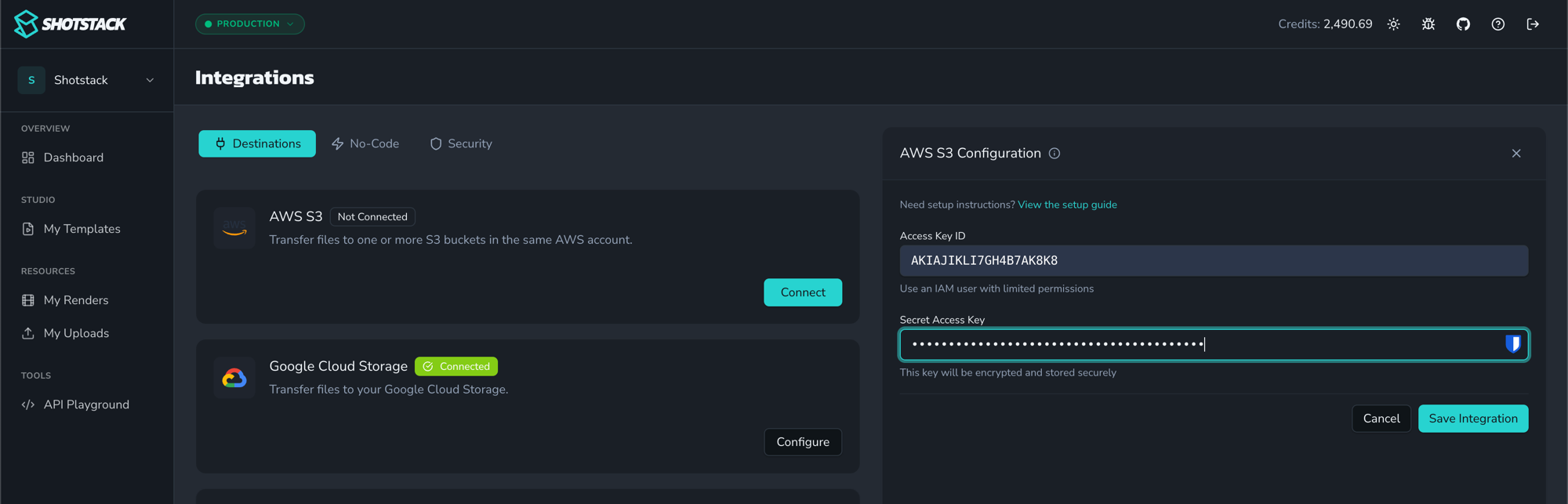
Login to the dashboard and navigate to the integrations page, find the AWS S3 destination and click Connect.
Enter your access key id and secret access key, then click Save Integration. You can add different AWS keys for each Shotstack environment; sandbox and v1 (production), using the environment selector.
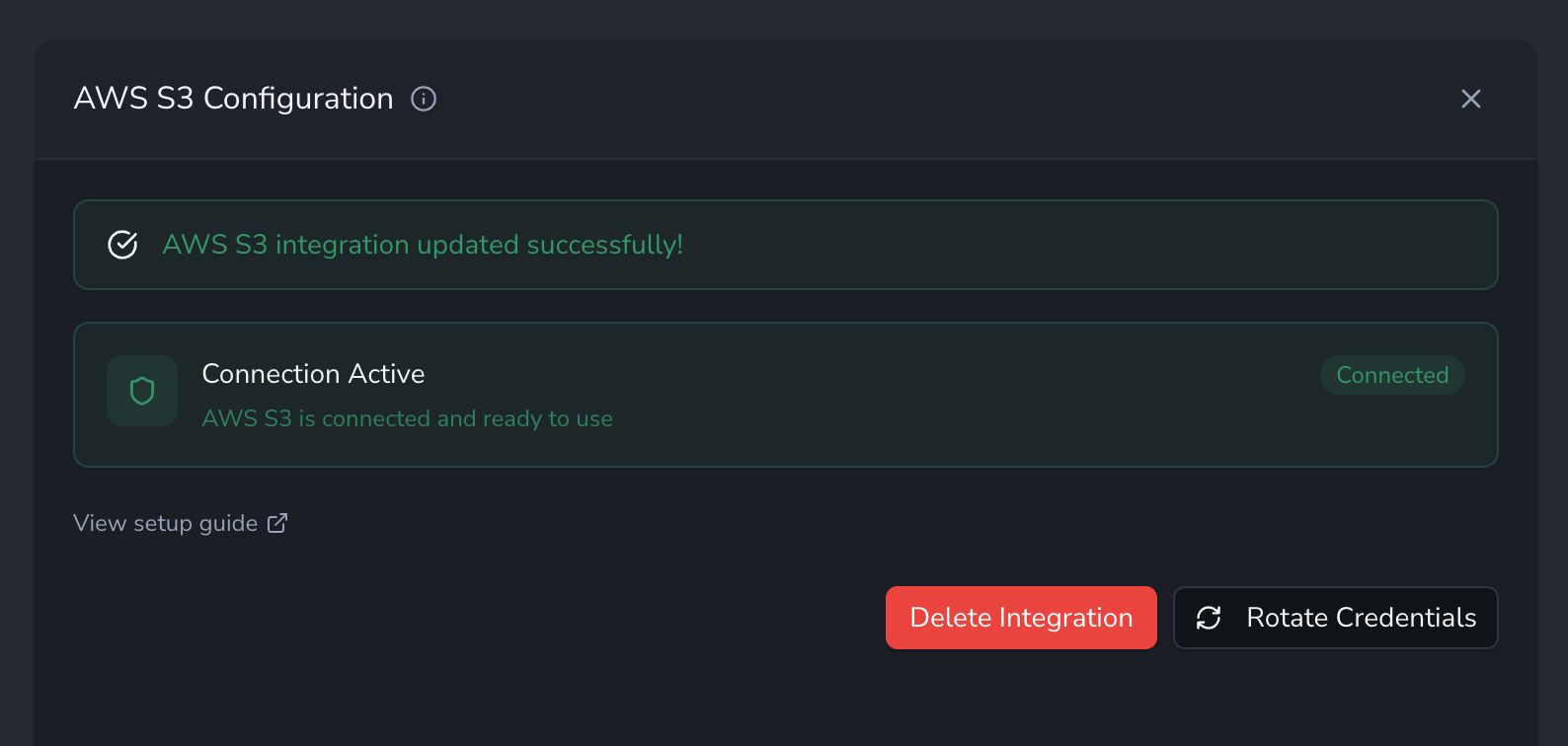
Once saved the S3 destination shows as connected and is ready to use.
Integration
Basic integration
To send files to S3 add the following to the output parameter of a render request JSON payload, JSON template or the root level of an ingest request:
"destinations": [{
    "provider": "s3",
    "options": {
        "region": "ap-southeast-2",
        "bucket": "my-s3-bucket"
    }
}]
This will send the generated or ingested files to the my-s3-bucket in the ap-southeast-2 region. The filename will be the render id, source id or rendition id plus extension, i.e. edc47d30-a504-4f16-8439-24c863a7a782.mp4 and will be saved to the root level of the bucket. Thumbnail and poster images will also be transferred.
Advanced integration
You can also optionally set a prefix (path), custom file name, and an acl (the default is private):
"destinations": [{
    "provider": "s3",
    "options": {
        "region": "ap-southeast-2",
        "bucket": "my-s3-bucket",
        "prefix": "testing",
        "filename": "video",
        "acl": "public-read"
    }
}]
This will save the file as testing/video.mp4 in the my-s3-bucket. Omit the file extension from the filename, it is added based on the rendered file type. Poster and thumbnail images have -poster.jpg and -thumb.jpg appended.
The default acl is private and needs no special bucket configuration. To use public-read, set the bucket's Object Ownership to Bucket owner preferred and turn off the two ACL options under Block Public Access, otherwise S3 rejects the upload.
Sending assets to multiple buckets
It is also possible to send files to multiple buckets with one request:
"destinations": [{
    "provider": "s3",
    "options": {
        "region": "ap-southeast-2",
        "bucket": "my-s3-bucket"
    }
},{
    "provider": "s3",
    "options": {
        "region": "us-east-1",
        "bucket": "my-us-s3-bucket"
    }
}]
This will send rendered assets to my-s3-bucket in ap-southeast-2 and to my-us-s3-bucket in us-east-1. Buckets must be in the same AWS account and use the same IAM credentials.
Opting out from the Shotstack destination
By default all generated files are sent to the Shotstack destination. If you are using S3 you may wish to opt out from hosting your videos with Shotstack using:
"destinations": [{
    "provider": "s3",
    "options": {
        "region": "ap-southeast-2",
        "bucket": "my-s3-bucket"
    }
},{
    "provider": "shotstack",
    "exclude": true
}]
This will send the generated video to S3 but not to Shotstack.