Contents
 Claude
  ChatGPT
  Perplexity
  Google AI
 Contents
To remove a green screen from video, you key out one color so that another picture shows through. In the Shotstack Edit API that is a single property on a video asset, chromaKey, with a color, a threshold and a halo. Put the new background on the track below and render.
The values decide whether you get a clean edge or a thin green line around your presenter. We rendered the same clip at six threshold values and compared six frames from each render with the source, pixel by pixel. This guide gives you the Python script and the settings that produced a clean key.
TL;DR
- Add
chromaKeyto the video asset and put the new background on a track below it. - Sample the key color from your own footage instead of guessing a green.
- Start the threshold at 150. In our test it removed the whole screen and left green on under 1% of the outline.
- Check the key over a magenta background before you render the final version.
How the chroma key works in the Edit API
You add chromaKey to a video asset. It takes three fields:
coloris the color to remove, as a six-digit hex value with a leading#. It is required.thresholdis how far a pixel’s color can be from the key color and still be removed. It takes a whole number from 0 to 250.halotakes 0 to 250. The API reference describes it as a band past the threshold where pixels become partly transparent instead of fully removed. The script in this guide leaves it out and tunes the threshold.
The keyed clip goes on the first track and the new background on a track below it. Tracks stack in array order, so the first track renders on top. Anything you remove shows the track underneath, or the timeline background color where there is no track.
One reason green works so well is the camera sensor. In Bryce Bayer’s 1976 color filter patent for Kodak, the green elements take every other position, half of the sensor, because they carry the detail the eye responds to most. More green samples means a cleaner screen to key out.
Step 1: sample the key color from your footage
Read the green from the footage itself. Any color picker on a still frame works. This FFmpeg command does it from the terminal: it takes one frame at the 1 second mark, crops a 40 by 40 pixel patch from the top left corner, averages it down to one pixel and prints its value as hex:
ffmpeg -v error -ss 1 -i avatar-chromakey.mp4 -frames:v 1 \
  -vf "crop=40:40:0:0,scale=1:1" -f rawvideo -pix_fmt rgb24 - | xxd -p
On the Shotstack sample presenter clip it prints 24d590. That is the same value the chroma key guide in the Shotstack docs uses for this clip. Pick a patch that is all screen, away from the subject and any shadows.
Step 2: run the Python script
The script below puts the sample presenter over a drone shot of a city. It uses only the Python standard library. Set your API key as SHOTSTACK_API_KEY first. You can get a free API key from the dashboard. Each render uses credits, as shown on the pricing page.
"""Remove a green screen from a video with the Shotstack Edit API's chroma key.

Usage: SHOTSTACK_API_KEY=... python green_screen.py [--check] [threshold]
  default   puts the keyed presenter over a city background and prints the video URL
  --check   renders over solid magenta instead, so any green left around the edges stands out
"""

import json
import os
import sys
import time
import urllib.error
import urllib.request

API_KEY = os.environ.get("SHOTSTACK_API_KEY") or sys.exit(
    "Set SHOTSTACK_API_KEY first."
)
BASE = "https://api.shotstack.io/edit/v1"
PRESENTER = "https://shotstack-assets.s3.amazonaws.com/footage/avatar-chromakey.mp4"
BACKGROUND = "https://shotstack-assets.s3.amazonaws.com/footage/drone-city-flyover.mp4"
KEY_COLOR = "#24d590"  # sampled from the footage itself, not a stock green
LENGTH = 7.2  # seconds, the length of the presenter clip

args = sys.argv[1:]
check = "--check" in args
threshold = int(next((a for a in args if a.isdigit()), 150))


def call(method, path, body=None):
    data = json.dumps(body).encode() if body else None
    req = urllib.request.Request(
        BASE + path,
        data=data,
        method=method,
        headers={
            "x-api-key": API_KEY,
            "Content-Type": "application/json",
            "Accept": "application/json",
        },
    )
    try:
        with urllib.request.urlopen(req, timeout=30) as r:
            return json.load(r)["response"]
    except urllib.error.HTTPError as e:  # a 400 says which field failed validation
        sys.exit(f"HTTP {e.code}: {e.read().decode()[:400]}")


presenter = {
    "asset": {
        "type": "video",
        "src": PRESENTER,
        "chromaKey": {"color": KEY_COLOR, "threshold": threshold},
    },
    "start": 0,
    "length": LENGTH,
    "fit": "none",  # keep the 1152 x 1080 source at its own size
}
background = {
    "asset": {"type": "video", "src": BACKGROUND, "trim": 5, "volume": 0},
    "start": 0,
    "length": LENGTH,
}
# Tracks stack top to bottom: the keyed presenter first, the new background under it.
tracks = [{"clips": [presenter]}]
if not check:
    tracks.append({"clips": [background]})
edit = {
    "timeline": {"background": "#ff00ff" if check else "#000000", "tracks": tracks},
    "output": {"format": "mp4", "resolution": "1080"},
}

render_id = call("POST", "/render", edit)["id"]
mode = "over magenta (check)" if check else "over the city background"
print(f"render {render_id}  threshold {threshold}  {mode}")
while True:
    r = call("GET", f"/render/{render_id}")
    if r["status"] == "done":
        print(r["url"])
        break
    if r["status"] == "failed":
        sys.exit(f"render failed: {r.get('error')}")
    time.sleep(3)
Four details in the script are worth copying:
fit: "none"keeps the presenter at its own size. The source is 1152 by 1080 and the output is 1920 by 1080, so the defaultcropfit would scale the presenter up and cut off the top of the head.- The background is muted. Its
volumeis 0, so only the presenter’s voice is in the output. The guide to mute a video or replace its audio covers the other options. --checkswaps the background for magenta. Magenta is the opposite of green on the color wheel, so any green left on the outline is easy to see. It is the quickest way to judge a key before you render the real version.- Errors print the field that failed. Pass a threshold of 300 and the API answers HTTP 400 with “Too big: expected number to be <=250” and the path to
chromaKey.threshold.
The output
These are three runs: the default render over the city, a check at threshold 150, and a check at threshold 25.
render a6a67f9d-e9ab-46ac-aff3-3d706573cbc0  threshold 150  over the city background
https://shotstack-api-v1-output.s3-ap-southeast-2.amazonaws.com/35tqpmb0ya/a6a67f9d-e9ab-46ac-aff3-3d706573cbc0.mp4
render e6769814-2313-4abb-be0e-bf10af10ec61  threshold 150  over magenta (check)
https://shotstack-api-v1-output.s3-ap-southeast-2.amazonaws.com/35tqpmb0ya/e6769814-2313-4abb-be0e-bf10af10ec61.mp4
render 60fac5a9-f47e-4af2-a0bb-1bd7c53e72f2  threshold 25  over magenta (check)
https://shotstack-api-v1-output.s3-ap-southeast-2.amazonaws.com/35tqpmb0ya/60fac5a9-f47e-4af2-a0bb-1bd7c53e72f2.mp4
The check renders show the difference at the edges. At threshold 25 a teal line runs around the hair. At 50 it is thinner. At 150 it is gone.
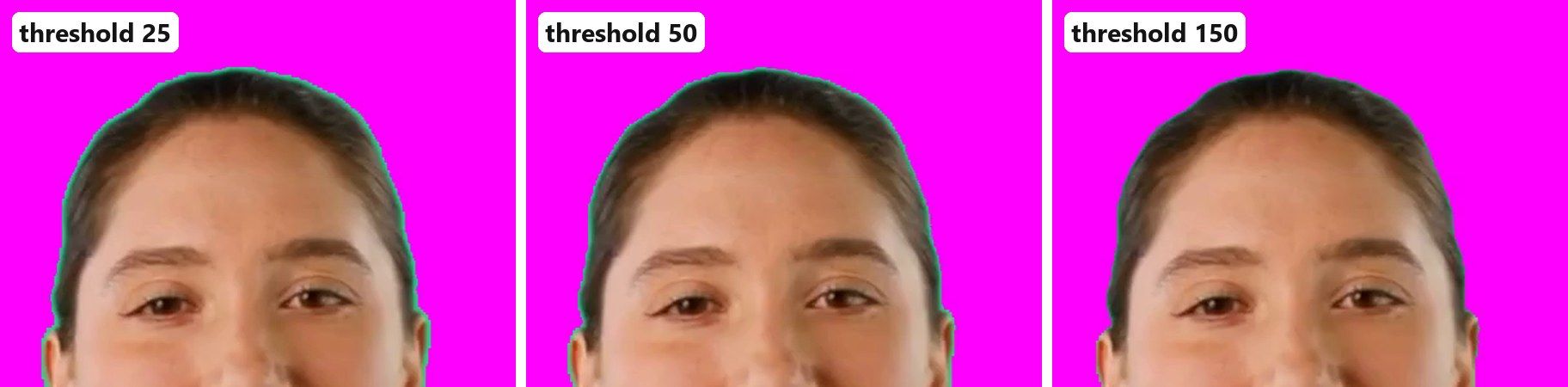
What we measured: how the threshold changes the edge
We rendered the same 7.2 second clip at six threshold values with the sampled color #24d590. Each render went over a magenta timeline background, at the source size of 1152 by 1080 and 30 fps. We then compared six frames per render with the source footage:
- Screen removed is the share of the green screen area that turned magenta.
- Green left on the outline is the share of a 12 pixel band around the presenter’s outline that was still green.
- Presenter lost is the share of the presenter that turned magenta.
| Threshold | Screen removed | Green left on the outline | Presenter lost |
|---|---|---|---|
| 25 | 100% | 15.1% | 0% |
| 50 | 100% | 9.6% | 0% |
| 100 | 100% | 3.4% | 0% |
| 150 | 100% | 0.8% | 0% |
| 200 | 100% | 0.1% | 0% |
| 250 | 100% | 0.02% | 0.02% |
Three findings came out of the runs.
- Every threshold removed the whole screen. With the color sampled from the footage, even 25 cleared 100% of the green area. The threshold decides how clean the edge is, not whether the screen goes.
- 150 is a good starting point. It left green on under 1% of the outline, with nothing lost from the presenter. Our sample screen is one flat color. A real screen with shadows or creases covers a range of greens, so start at 150 and check over magenta.
- Even 250 barely touched the presenter. The maximum threshold removed 0.02% of the presenter. The skin, hair and red shirt are far enough from the screen color that the key never reached them.
The demo below is the result at threshold 150. It starts with the raw clip and wipes to the keyed version over the city.
Before you shoot
Three habits make any key easier:
- Light the screen evenly. The flatter the green, the lower the threshold you need, and the less risk to the edges of your subject.
- Keep the subject away from the screen. Distance cuts the green light that bounces onto hair and shoulders, which is where an outline shows up.
- Keep green out of the shot. Anything close to the key color goes with the screen, whatever it is attached to.
Swap the background in code, not in an editor
A chroma key in the Edit API is three values on one asset. Sample the color from your footage, start the threshold at 150, check the edge over magenta, and put whatever background you need on the track below.
Because the edit is JSON, the same presenter take can go out over a different background for every product, region or customer without opening an editor.
Sign up for a free API key and run the script on your own footage. If this is your first render, the first video guide walks through the submit and poll loop step by step.
Frequently asked questions (FAQs)
Does it work with a blue screen?
Yes. The color can be any six-digit hex value, and the API reference gives #0000FF for blue screens. For the cleanest edge, sample the exact blue from your own footage the same way as in Step 1.
Can I put the presenter in a corner instead of the center?
Yes. Keep fit: "none" or use scale to size the clip, then set position to one of the nine presets such as bottomRight, and nudge it with offset. The picture in picture guide shows the same layout with a second video.
Can I add a logo or a title over the keyed video?
Yes. Add another track above the presenter’s track, because the first track in the array renders on top. A logo is an image clip and a title is a rich-text clip, each with its own start and length, so they can appear and disappear while the presenter talks.
Can the background change partway through?
Yes. Put several clips back to back on the background track and leave the presenter track as it is. Add a transition such as wipeRight to a background clip to move between them. The demo above uses that transition on the keyed layers to reveal the new background.
Get started with Shotstack's video editing API in two steps:
- Sign up for free to get your API key.
- Send an API request to create your video:
curl --request POST 'https://api.shotstack.io/v1/render' \
--header 'x-api-key: YOUR_API_KEY' \
--data-raw '{
  "timeline": {
    "tracks": [
      {
        "clips": [
          {
            "asset": {
              "type": "video",
              "src": "https://shotstack-assets.s3.amazonaws.com/footage/beach-overhead.mp4"
            },
            "start": 0,
            "length": "auto"
          }
        ]
      }
    ]
  },
  "output": {
    "format": "mp4",
    "size": {
      "width": 1280,
      "height": 720
    }
  }
}'

Published October 29, 2026
Jesus Rojas is a Growth Engineer at Shotstack, combining engineering and experimentation to help developers adopt video APIs. He builds onboarding experiences, lifecycle automation and analytics. Outside work, he enjoys making music and plays several instruments. More from Jesus
Experience Shotstack for yourself.
- Seamless integration
- Dependable high-volume scaling
- Blazing fast rendering
- Save thousands