Contents
 Claude
  ChatGPT
  Perplexity
  Google AI
 Contents
Video localization with the Shotstack API comes down to one template and one config entry per language. At render time, three primitives do the rest: generated speech turns each translated script into an AI voice-over, captions are transcribed from that speech, and merge fields fill in the on-screen text, so adding a language means adding a config entry.
This guide is for developers adding multi-language video to a product or content pipeline. The approach suits narrated videos built from a template, such as product videos, property listings, explainers, news clips and ads. It isn’t lip-sync dubbing of someone speaking on camera.
Video localization means adapting a video for viewers who speak another language, and the localized video strategy guide covers why it’s worth doing. Here, each localized video gets its own voice-over, translated captions, headline and call to action, while the footage and design stay the same.
The rest of this guide shows how to localize a video this way with the Shotstack API, using a property listing video rendered in English, Spanish, German and Japanese. The Japanese version also shows why you should check every language: the first voice misread the script, and the captions are what gave it away.
TL;DR
- To localize a video for every language your customers speak, render one template once per language.
- Shotstack generates each AI voice-over from your translated script, captions it and fills in the on-screen text.
- A new language is just a new config entry.
- Optional: a language model can draft the translations for you, for review before you render.
- This guide builds it in Python, with a property listing video in English, Spanish, German and Japanese.
How it fits into your system
The pipeline takes two inputs: a saved template, and a config entry per language with the script, voice, headline and call to action. It produces two outputs: one video file per language in your storage, and one render ID per language in your database.
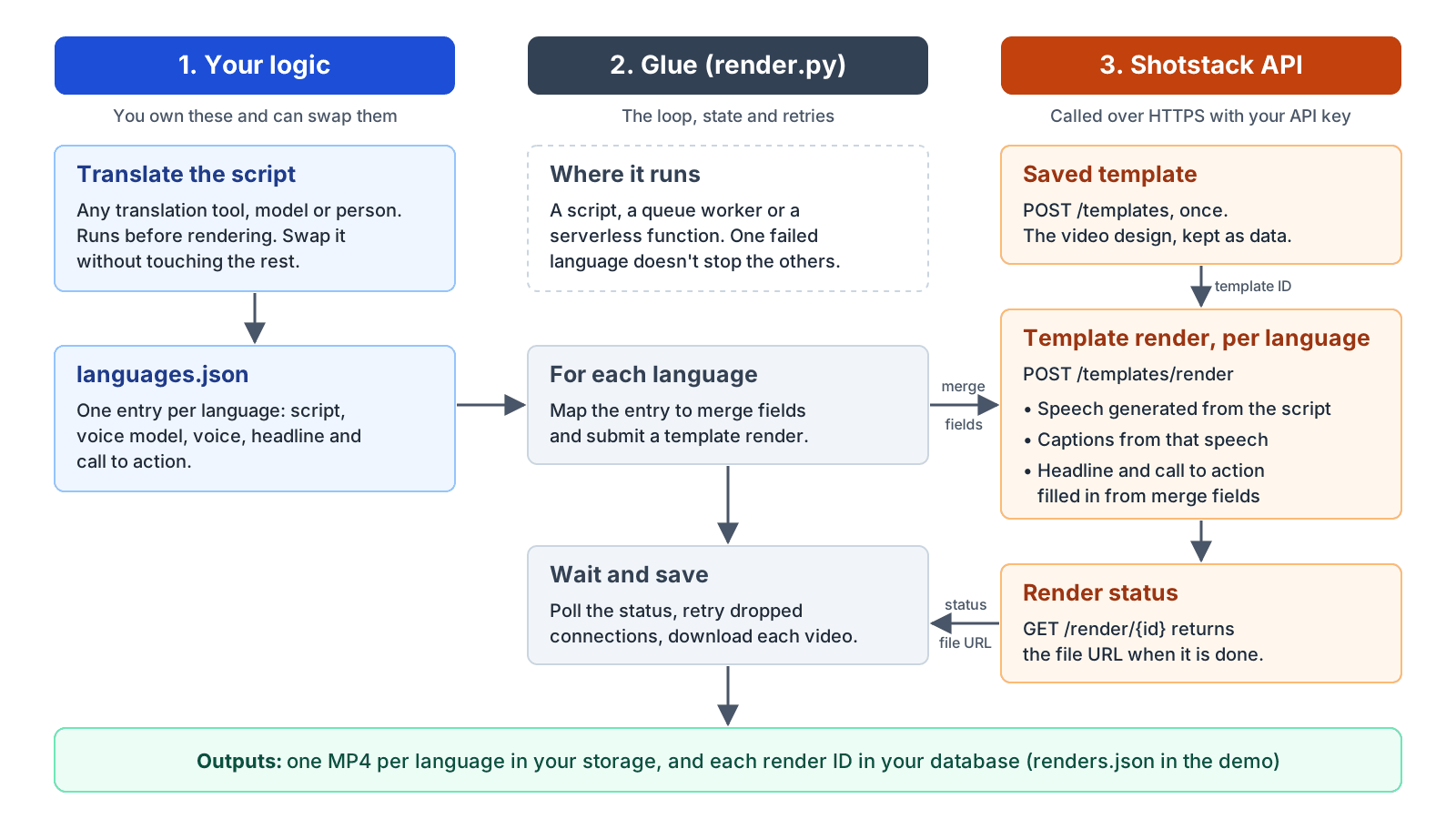
There are three kinds of parts:
- Your logic decides which languages to ship and produces the translated scripts. Translation is a function you can swap: a translation API, a language model or a human translator all work, as long as the result is text.
- Glue maps each config entry to merge fields, submits the renders, waits for them, saves the files and keeps track of render IDs. In a product, it runs wherever your background jobs run: a script, a queue worker or a serverless function.
- Shotstack API calls do the media work. The template is data you save once. Each template render generates the speech, transcribes it into captions and fills in the text, and no render depends on another, so the render step is stateless.
The example: one listing video in four languages
The example is a property listing video for Aurelia Residences, a fictional apartment development, rendered in English, Spanish, German and Japanese from one template. Each version has a generated voice-over, word-by-word captions transcribed from that voice-over, and a headline and call to action in its language. The footage is the same in all four.
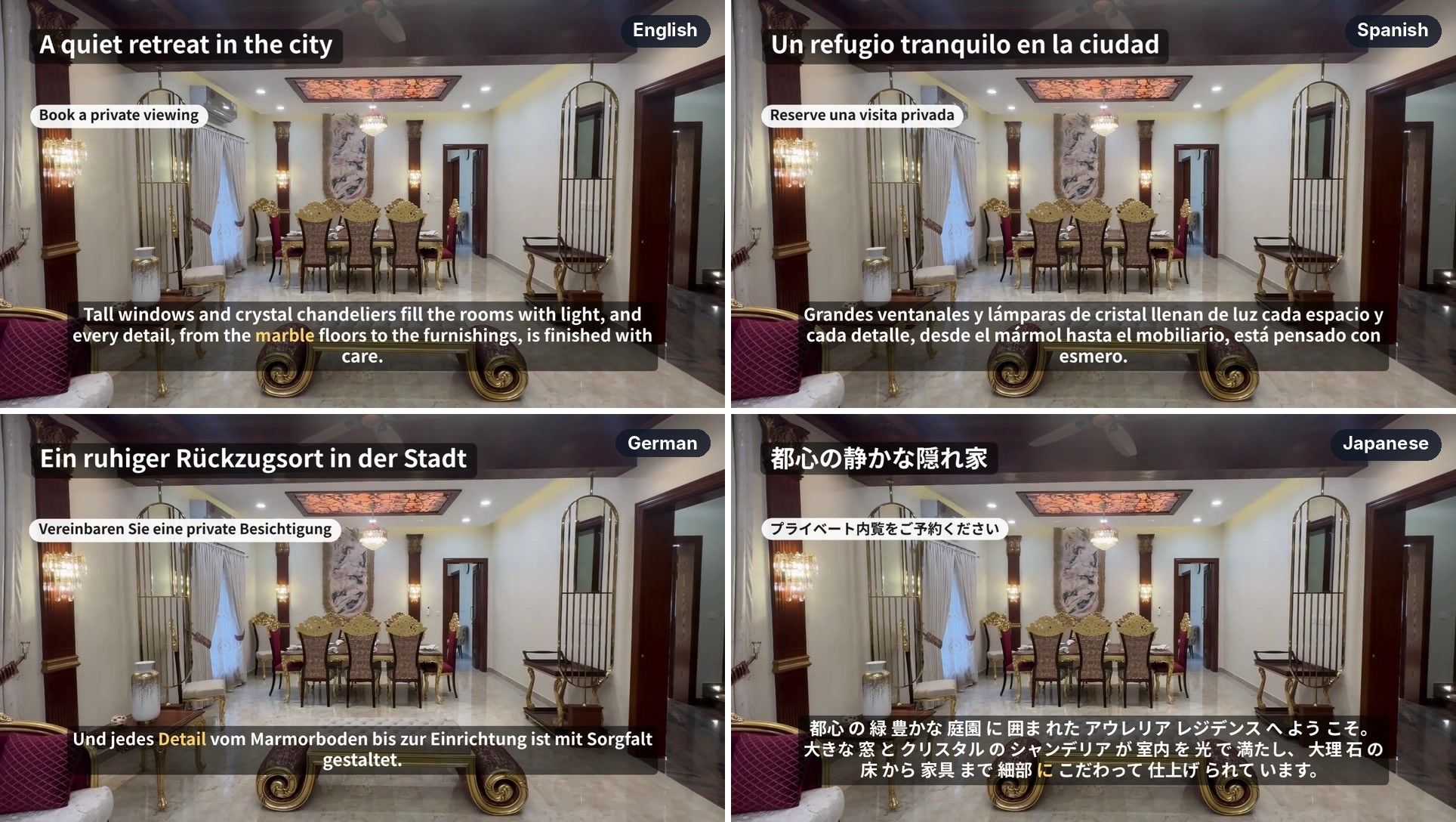
Here’s the Japanese version:
The English, Spanish and German versions are in Step 6, where you check each localized video.
The voice-overs run from 24.4 seconds in Japanese to 28.7 seconds in German, and each video ends when its narration does. The project is small: a template, a config file and three short Python scripts, plus an optional fourth that drafts the translations. The complete runnable example is in the localized-listing-videos example in the Shotstack cookbook.
Footage: eight clips from Pexels (videos 14593404, 12684208, 12684285, 12684178, 12684187, 12684277, 14807068 and 14807004), joined with crossfades. Font: Noto Sans JP, SIL Open Font License.
Before you start
You need:
- Python 3.8 or later with the
requestslibrary. - A Shotstack production API key. The scripts read it from the
SHOTSTACK_API_KEYenvironment variable and call the production API, where renders use credits (see Shotstack pricing). - Footage that runs longer than your longest voice-over, at a public URL. The example uses 69 seconds of exterior and interior shots for voice-overs of under 30 seconds.
In a new folder for the project, set up a virtual environment, install requests and set your key. Run all the commands in this guide from that folder:
python3 -m venv venv
source venv/bin/activate
python -m pip install requests
export SHOTSTACK_API_KEY=your-production-key
Generated speech also has to be available on your account. GET /models lists each generation model with an available flag for your API key. Check that it’s true for elevenlabs-multilingual-v2 and polly-neural, the two voice models this example uses:
curl -s https://api.shotstack.io/edit/v1/models -H "x-api-key: $SHOTSTACK_API_KEY" | python -m json.tool
If your footage is a file on your computer, upload it to Shotstack first. This script, saved as upload_footage.py, sends the file with the Ingest API’s direct upload, waits until Shotstack has stored it and prints the hosted URL to use in the template:
"""Upload a local video file to Shotstack's Ingest API and print its hosted URL.

Usage: python3 upload_footage.py path/to/footage.mp4
"""

import os
import sys
import time

import requests

API = "https://api.shotstack.io/ingest/v1"
POLL_SECONDS = 5
TIMEOUT_SECONDS = 15 * 60


def error_detail(resp):
    """Return the API's error message as one line."""
    # A rejected key comes back as {"errors": [...]}. Other Shotstack errors
    # come back as {"message": ..., "response": ...}.
    try:
        body = resp.json()
        if body.get("errors"):
            detail = body["errors"][0].get("detail") or body["errors"][0].get("title")
        else:
            detail = body.get("response")
            if isinstance(detail, dict):
                detail = detail.get("error") or detail.get("message")
            detail = detail or body.get("message")
    except Exception:
        detail = None
    return str(detail) if detail else resp.text.strip()[:200] or resp.reason


def check(resp, action):
    if not resp.ok:
        raise RuntimeError(
            f"Could not {action} ({resp.status_code}): {error_detail(resp)}"
        )
    return resp


def main():
    api_key = os.environ.get("SHOTSTACK_API_KEY")
    if not api_key:
        raise RuntimeError("Set the SHOTSTACK_API_KEY environment variable first.")
    if len(sys.argv) != 2:
        raise RuntimeError("Usage: python3 upload_footage.py <path-to-video>")
    path = sys.argv[1]
    if not os.path.isfile(path):
        raise RuntimeError(f"File not found: {path}")
    headers = {"x-api-key": api_key}

    # 1. Ask for a signed upload URL (valid for one hour).
    response = requests.post(f"{API}/upload", headers=headers, timeout=30)
    upload = check(response, "request an upload URL")
    data = upload.json()["data"]
    source_id, signed_url = data["id"], data["attributes"]["url"]

    # 2. Send the file to the signed URL with a plain PUT request.
    with open(path, "rb") as video:
        check(requests.put(signed_url, data=video, timeout=900), "upload the file")

    # 3. Wait until Shotstack has stored the file, then print its URL.
    deadline = time.monotonic() + TIMEOUT_SECONDS
    while time.monotonic() < deadline:
        response = requests.get(
            f"{API}/sources/{source_id}", headers=headers, timeout=30
        )
        action = f"check source {source_id}"
        attributes = check(response, action).json()["data"]["attributes"]
        status = attributes["status"]
        if status == "ready":
            print(attributes["source"])
            return
        if status in ("failed", "deleted", "overwritten"):
            raise RuntimeError(f"Ingest {status} for source {source_id}")
        time.sleep(POLL_SECONDS)
    raise RuntimeError(
        f"Source {source_id} was not ready after {TIMEOUT_SECONDS} seconds. "
        "Do not upload the file again. "
        f"Get its status later with GET {API}/sources/{source_id}"
    )


if __name__ == "__main__":
    try:
        main()
    except KeyboardInterrupt:
        raise SystemExit(1) from None
    except requests.ConnectionError:
        print(
            "Could not reach Shotstack. Check your network connection "
            "and run the script again.",
            file=sys.stderr,
        )
        raise SystemExit(1) from None
    except Exception as error:
        print(error, file=sys.stderr)
        raise SystemExit(1) from error
Run it with the path to your footage:
python upload_footage.py path/to/footage.mp4
Step 1: Write and translate the script
Translation is your component, and it runs before rendering. The API doesn’t translate anything: it speaks whatever text you give it. Keep translation behind one function, so you can change how you do it without touching the template or the render loop. The translated scripts go into languages.json as plain text, one entry per language.
A few things make translated scripts work as voice-overs:
- Write for the ear. Spell out anything that must be read a certain way, such as prices, dates and abbreviations. The AI speech docs have more advice on writing scripts.
- Expect different lengths. The German voice-over in this example runs 17% longer than the English one. The template absorbs that, as Step 3 shows, but every extra second of script is an extra second of video, so keep the source script tight.
- Have a fluent speaker review each translation. The voice reads exactly what you give it, so a mistake in the translation becomes a mistake in the voice-over.
If you’d rather not write each translation by hand, the optional upgrade after Step 6 has a language model draft them into languages.json for you.
Step 2: Choose a voice for each language
Save the translations as languages.json in the project folder. Each entry has a language code, a voice model and a voice, along with the script, headline and call to action:
[
  {
    "code": "en",
    "model": "elevenlabs-multilingual-v2",
    "voice": "Rachel",
    "script": "Welcome to Aurelia Residences, set among landscaped gardens in the heart of the city. Tall windows and crystal chandeliers fill the rooms with light, and every detail, from the marble floors to the furnishings, is finished with care. There's space to gather, space to unwind, and a home that's ready for you. Book your private viewing today.",
    "headline": "A quiet retreat in the city",
    "cta": "Book a private viewing"
  },
  {
    "code": "es",
    "model": "elevenlabs-multilingual-v2",
    "voice": "Rachel",
    "script": "Le damos la bienvenida a Aurelia Residences, entre jardines cuidados en el corazón de la ciudad. Grandes ventanales y lámparas de cristal llenan de luz cada espacio, y cada detalle, desde el mármol hasta el mobiliario, está pensado con esmero. Hay lugar para reunirse, lugar para descansar y un hogar listo para usted. Reserve hoy su visita privada.",
    "headline": "Un refugio tranquilo en la ciudad",
    "cta": "Reserve una visita privada"
  },
  {
    "code": "de",
    "model": "elevenlabs-multilingual-v2",
    "voice": "Rachel",
    "script": "Willkommen in den Aurelia Residences, umgeben von gepflegten Gärten im Herzen der Stadt. Hohe Fenster und Kristallleuchter tauchen die Räume in helles Licht, und jedes Detail, vom Marmorboden bis zur Einrichtung, ist mit Sorgfalt gestaltet. Hier ist Raum zum Zusammenkommen, Raum zum Entspannen und ein Zuhause, das auf Sie wartet. Vereinbaren Sie noch heute Ihre private Besichtigung.",
    "headline": "Ein ruhiger Rückzugsort in der Stadt",
    "cta": "Vereinbaren Sie eine private Besichtigung"
  },
  {
    "code": "ja",
    "model": "polly-neural",
    "voice": "Kazuha",
    "script": "都心の緑豊かな庭園に囲まれた、アウレリア・レジデンスへようこそ。大きな窓とクリスタルのシャンデリアが室内を光で満たし、大理石の床から家具まで、細部にこだわって仕上げられています。みんなで集える空間も、ゆったりくつろげる空間もそろい、新しい暮らしをすぐに始められます。ぜひ本日、プライベート内覧をご予約ください。",
    "headline": "都心の静かな隠れ家",
    "cta": "プライベート内覧をご予約ください"
  }
]
English, Spanish and German use elevenlabs-multilingual-v2 with the Rachel voice. The model speaks 29 languages and works out the language from the script, so the template doesn’t set a language option. Japanese uses polly-neural with Kazuha, a Japanese voice, and the reason is worth knowing before you add languages of your own.
The first Japanese render I made used the same model and voice as the other three, and its captions came back with wrong words in several places. The script’s アウレリア・レジデンス (Aurelia Residences) appeared as アウレリアエアワレジデンス, and 集える (“can gather”) as ハオ える.
An independent speech recognition model run on the same audio heard similar wrong sounds, so the problem was in the voice-over, not the captions. Rewriting the problem words in kana only partly helped. Switching the Japanese entry to polly-neural, with the original script, fixed it.
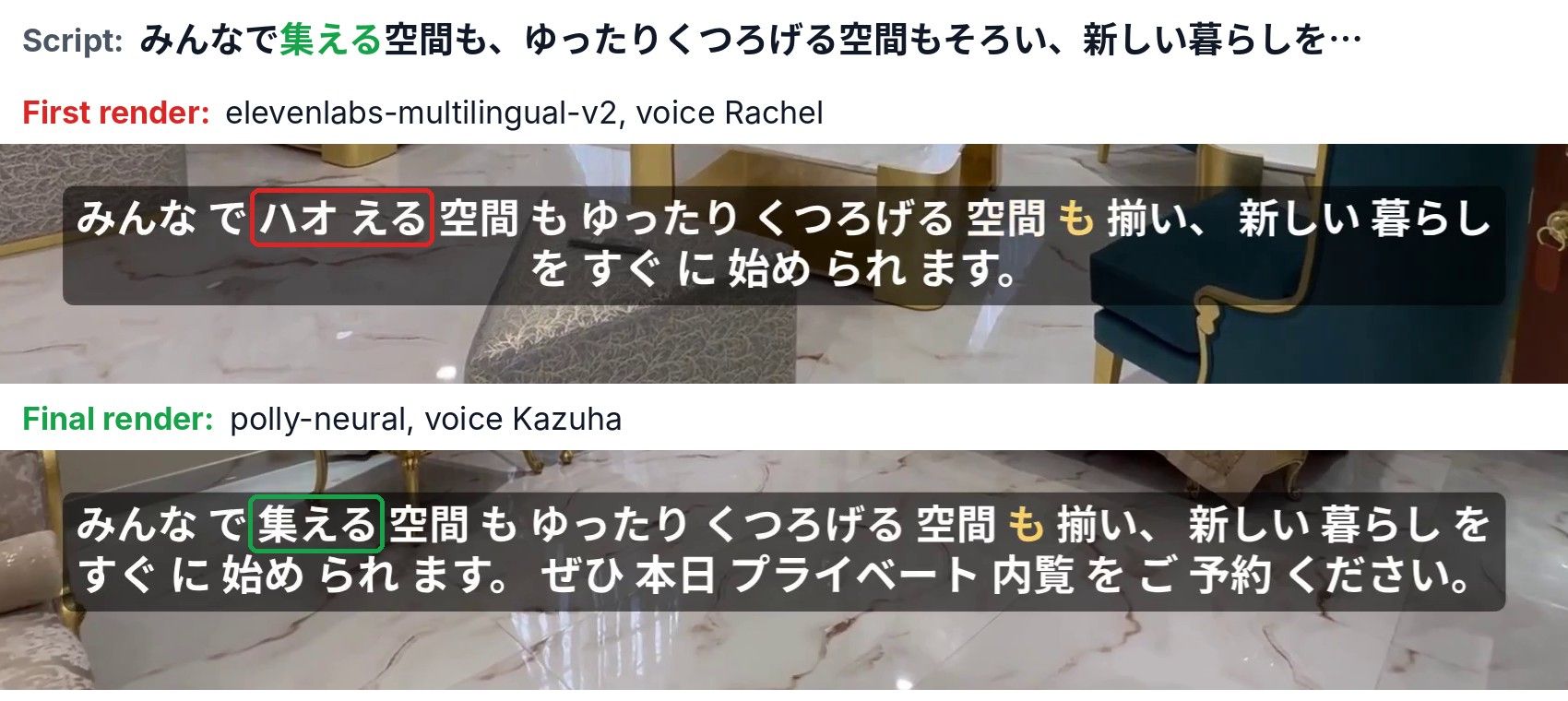
That’s why the voice model is a merge field rather than fixed in the template: you can pick the best model for each language, and change it later, without touching the design. Choose voices by listening to short samples. The AI speech docs list the models and their options, and GET /models/{id} returns the full option schema for one model, including its voices.
Step 3: Build the template
The template is the video design, kept as data. Save it as template.json. It has five tracks, and the first track in the list is drawn on top:
{
  "timeline": {
    "background": "#000000",
    "fonts": [
      {
        "src": "https://raw.githubusercontent.com/notofonts/noto-cjk/f8d157532fbfaeda587e826d4cd5b21a49186f7c/Sans/SubsetOTF/JP/NotoSansJP-Regular.otf"
      },
      {
        "src": "https://raw.githubusercontent.com/notofonts/noto-cjk/f8d157532fbfaeda587e826d4cd5b21a49186f7c/Sans/SubsetOTF/JP/NotoSansJP-Bold.otf"
      }
    ],
    "tracks": [
      {
        "clips": [
          {
            "asset": {
              "type": "rich-text",
              "text": "{{HEADLINE}}",
              "font": {
                "family": "Noto Sans JP",
                "size": 64,
                "weight": 700,
                "color": "#FFFFFF"
              },
              "background": {
                "color": "#000000",
                "opacity": 0.55,
                "borderRadius": 16,
                "wrap": true
              },
              "align": { "horizontal": "left", "vertical": "top" },
              "padding": { "top": 12, "right": 28, "bottom": 14, "left": 28 }
            },
            "start": 0,
            "length": "alias://voice",
            "width": 1200,
            "height": 200,
            "position": "topLeft",
            "offset": { "x": 0.04, "y": -0.06 },
            "transition": { "in": "fade" }
          }
        ]
      },
      {
        "clips": [
          {
            "asset": {
              "type": "rich-text",
              "text": "{{CTA}}",
              "font": {
                "family": "Noto Sans JP",
                "size": 38,
                "weight": 700,
                "color": "#1A1A1A"
              },
              "background": {
                "color": "#FFFFFF",
                "opacity": 0.92,
                "borderRadius": 40,
                "wrap": true
              },
              "align": { "horizontal": "left", "vertical": "top" },
              "padding": { "top": 10, "right": 26, "bottom": 12, "left": 26 }
            },
            "start": 0,
            "length": "alias://voice",
            "width": 1200,
            "height": 110,
            "position": "topLeft",
            "offset": { "x": 0.04, "y": -0.25 },
            "transition": { "in": "fade" }
          }
        ]
      },
      {
        "clips": [
          {
            "asset": {
              "type": "rich-caption",
              "src": "alias://voice",
              "font": {
                "family": "Noto Sans JP",
                "size": 46,
                "weight": 700,
                "color": "#FFFFFF"
              },
              "background": {
                "color": "#000000",
                "opacity": 0.55,
                "borderRadius": 12,
                "wrap": true,
                "padding": 14
              },
              "active": { "font": { "color": "#FFD166" } },
              "animation": { "style": "highlight" },
              "align": { "horizontal": "center", "vertical": "bottom" }
            },
            "start": 0,
            "length": "end",
            "width": 1600,
            "height": 240,
            "position": "bottom",
            "offset": { "y": 0.06 }
          }
        ]
      },
      {
        "clips": [
          {
            "alias": "voice",
            "asset": {
              "type": "audio",
              "prompt": "{{SCRIPT}}",
              "model": "{{MODEL}}",
              "options": { "voice": "{{VOICE}}" }
            },
            "start": 0,
            "length": "auto"
          }
        ]
      },
      {
        "clips": [
          {
            "asset": {
              "type": "video",
              "src": "PASTE_FOOTAGE_URL_HERE",
              "volume": 0
            },
            "start": 0,
            "length": "alias://voice",
            "transition": { "out": "fade" }
          }
        ]
      }
    ]
  },
  "output": { "format": "mp4", "resolution": "1080", "fps": 30 }
}
Replace PASTE_FOOTAGE_URL_HERE with your footage URL. Here’s what each part does:
- Voice. The
audioasset with apromptgenerates speech from the text in{{SCRIPT}}, using the model and voice from theMODELandVOICEmerge fields. Speech settings such asvoicego insideoptions."length": "auto"makes the clip last exactly as long as the generated speech, and"alias": "voice"lets other clips refer to it. - Timing. The footage, headline and call to action use
"length": "alias://voice", so every version is exactly as long as its voice-over, whatever the language. The captions run to"end", the end of the timeline, which is the same point. See aliases and smart clips for how these lengths resolve. - Footage.
"volume": 0mutes the footage’s own sound, so only the voice-over plays. The footage is cut to the length of the voice-over, so it has to be longer than the longest one, or it runs out before the narration ends. - Captions. The
rich-captionasset with"src": "alias://voice"transcribes the generated speech in the same render and shows the words as they’re spoken, highlighting the current one. It supports 99 languages and detects the language itself, so there’s no caption file per language.srccan also point to an SRT or VTT file, such as translated subtitles, but the timing then comes from that file, so it’s likely to drift from a generated voice-over. See rich captions. - Headline and call to action. Two
rich-textassets fill in{{HEADLINE}}and{{CTA}}. With"wrap": true, each background shrinks to fit its text, and the asset-levelpaddingsets the space between the text and the edge of the background. The headline box is 1,200 pixels wide, enough to keep the German headline, the longest of the four, on one line. - Fonts.
timeline.fontsloads Noto Sans JP in Regular and Bold, and all three text clips set"family": "Noto Sans JP". They all use weight 700, the Bold file; Regular is there for any normal-weight text you add. The font covers Japanese as well as the accented letters in Spanish and German, so one font works for all four languages. Set the family on the captions too, because the default fonts for rich text and rich captions don’t include Japanese characters. - Font files. Use static font files, one per weight, pinned to a fixed version (these URLs point at one commit of the Noto CJK repository). Variable versions of Noto Sans JP default to their thinnest weight, and the one on Google Fonts also names itself Noto Sans JP Thin, so the static files are the safer choice. The rich text docs cover custom fonts.
- Output. 1080p at 30 frames per second, to match the footage. Without
fps, the output defaults to 25.
Step 4: Save the template
Save template.json to your Shotstack account once with POST /templates. This script, saved as save_template.py, sends it and prints the template ID:
"""Save template.json as a Shotstack template and print the template ID."""

import json
import os
import sys
from pathlib import Path

import requests

API = "https://api.shotstack.io/edit/v1"
HERE = Path(__file__).resolve().parent


def error_detail(resp):
    """Return the API's error message as one line."""
    # A rejected key comes back as {"errors": [...]}. Other Shotstack errors
    # come back as {"message": ..., "response": ...}.
    try:
        body = resp.json()
        if body.get("errors"):
            detail = body["errors"][0].get("detail") or body["errors"][0].get("title")
        else:
            detail = body.get("response")
            if isinstance(detail, dict):
                detail = detail.get("error") or detail.get("message")
            detail = detail or body.get("message")
    except Exception:
        detail = None
    return str(detail) if detail else resp.text.strip()[:200] or resp.reason


def main():
    api_key = os.environ.get("SHOTSTACK_API_KEY")
    if not api_key:
        raise RuntimeError("Set the SHOTSTACK_API_KEY environment variable first.")

    template_text = (HERE / "template.json").read_text(encoding="utf-8")
    if "PASTE_FOOTAGE_URL_HERE" in template_text:
        raise RuntimeError(
            "Replace PASTE_FOOTAGE_URL_HERE in template.json "
            "with your footage URL first."
        )

    resp = requests.post(
        f"{API}/templates",
        headers={"x-api-key": api_key},
        json={"name": "Localized listing video", "template": json.loads(template_text)},
        timeout=30,
    )
    if not resp.ok:
        raise RuntimeError(
            f"Could not save the template ({resp.status_code}): {error_detail(resp)}"
        )

    print(resp.json()["response"]["id"])


if __name__ == "__main__":
    try:
        main()
    except KeyboardInterrupt:
        raise SystemExit(1) from None
    except requests.ConnectionError:
        print(
            "Could not reach Shotstack. Check your network connection "
            "and run the script again.",
            file=sys.stderr,
        )
        raise SystemExit(1) from None
    except Exception as error:
        print(error, file=sys.stderr)
        raise SystemExit(1) from error
python save_template.py
export SHOTSTACK_TEMPLATE_ID=the-id-it-prints
Each save creates a new template with a new ID, so update SHOTSTACK_TEMPLATE_ID whenever you change the design and save it again. The templates docs also cover updating a saved template in place, which keeps its ID. If you do that, delete output/renders.json so render.py renders every language again.
Step 5: Render every language
render.py is the glue. For each entry in languages.json, it calls POST /templates/render with the template ID and a merge array, polls GET /render/{id} until the video is ready, and saves it as output/<code>.mp4. The three blocks below make up the whole script. Save them in order as render.py.
The first block maps a config entry to the template’s merge fields. Each find value matches a {{...}} placeholder in the template, the same merge field pattern our guide to generating videos in bulk uses for one video per CSV row. fingerprint() hashes the template ID and those merge fields, which lets the script tell later whether a saved video is still current:
"""Render one localized video per language from a saved Shotstack template.

Reads languages.json, submits one template render per language, waits for each
render to finish, and saves the videos to output/<code>.mp4. Each render is
recorded in output/renders.json together with a fingerprint of what it was made
from: the template ID and that language's merge fields.

Running the script again skips videos already finished with the same template
ID and text, picks up renders that were still running (or finished after the
script stopped), and starts new renders for new, changed or failed languages.

Pass language codes to render only those, e.g. `python3 render.py ja`.
"""

import hashlib
import json
import os
import sys
import time
from pathlib import Path

import requests

API = "https://api.shotstack.io/edit/v1"
API_KEY = os.environ.get("SHOTSTACK_API_KEY")
TEMPLATE_ID = os.environ.get("SHOTSTACK_TEMPLATE_ID")
HEADERS = {"x-api-key": API_KEY or ""}
HERE = Path(__file__).resolve().parent
OUTPUT_DIR = HERE / "output"
LOG_PATH = OUTPUT_DIR / "renders.json"
POLL_SECONDS = 5
TIMEOUT_SECONDS = 15 * 60
CONNECTION_RETRIES = 6


def error_detail(resp):
    """Return the API's error message as one line."""
    # A rejected key comes back as {"errors": [...]}. Other Shotstack errors
    # come back as {"message": ..., "response": ...}.
    try:
        body = resp.json()
        if body.get("errors"):
            detail = body["errors"][0].get("detail") or body["errors"][0].get("title")
        else:
            detail = body.get("response")
            if isinstance(detail, dict):
                detail = detail.get("error") or detail.get("message")
            detail = detail or body.get("message")
    except Exception:
        detail = None
    return str(detail) if detail else resp.text.strip()[:200] or resp.reason


def read_json(path):
    """Read a JSON file, or stop with one line that names the file."""
    try:
        return json.loads(path.read_text(encoding="utf-8"))
    except ValueError as err:
        raise RuntimeError(f"{path.name} is not valid JSON: {err}") from None


def read_languages(path):
    """Read languages.json and check that each entry has a language code."""
    languages = read_json(path)
    if not isinstance(languages, list) or not languages:
        raise RuntimeError(f"{path.name} must be a list with at least one language.")
    for number, language in enumerate(languages, start=1):
        if not isinstance(language, dict) or not language.get("code"):
            raise RuntimeError(f"Entry {number} in {path.name} has no code.")
    codes = [language["code"] for language in languages]
    repeated = sorted({code for code in codes if codes.count(code) > 1})
    if repeated:
        raise RuntimeError(
            f"Codes used more than once in {path.name}: {', '.join(repeated)}"
        )
    return languages


def merge_fields(language):
    """Map one languages.json entry to the template's merge fields."""
    return [
        {"find": "SCRIPT", "replace": language["script"]},
        {"find": "MODEL", "replace": language["model"]},
        {"find": "VOICE", "replace": language["voice"]},
        {"find": "HEADLINE", "replace": language["headline"]},
        {"find": "CTA", "replace": language["cta"]},
    ]


def fingerprint(language):
    """Identify a video by the template ID and text it is rendered from."""
    payload = json.dumps(
        {"template": TEMPLATE_ID, "merge": merge_fields(language)},
        sort_keys=True,
        ensure_ascii=False,
    )
    return hashlib.sha256(payload.encode("utf-8")).hexdigest()[:16]
The second block talks to the API. submit() starts a render and returns its ID, and wait_for() checks the status every five seconds until the render is done or failed, printing each new status.
Renders that generate speech show an extra generating status while the speech is made, so expect it in the output. A render keeps running on Shotstack’s side if your connection drops, so server errors, timeouts and rate limits are retried until the 15-minute timeout instead of failing the language. A lost network connection is retried six times, then the script stops, and the next run picks the render up.
can_resume() checks whether a render recorded by an earlier run is still worth waiting for:
def submit(language):
    resp = requests.post(
        f"{API}/templates/render",
        headers=HEADERS,
        json={"id": TEMPLATE_ID, "merge": merge_fields(language)},
        timeout=30,
    )
    if resp.status_code in (401, 403):
        # A rejected key fails every language the same way, so stop now.
        raise SystemExit(f"Shotstack rejected the API key: {error_detail(resp)}")
    if not resp.ok:
        raise RuntimeError(f"submit failed ({resp.status_code}): {error_detail(resp)}")
    return resp.json()["response"]["id"]


def is_temporary(status_code):
    """True for a rate limit, a timeout or a server error: try again later."""
    return status_code is None or status_code >= 500 or status_code in (408, 429)


def get_render(render_id):
    resp = requests.get(f"{API}/render/{render_id}", headers=HEADERS, timeout=30)
    if is_temporary(resp.status_code):
        # A temporary error is retried like a connection problem.
        resp.raise_for_status()
    if not resp.ok:
        raise RuntimeError(
            f"status check failed ({resp.status_code}): {error_detail(resp)}"
        )
    return resp.json()["response"]


def wait_for(code, render_id):
    """Poll until the render is done or failed, printing each new status.

    The render keeps running on Shotstack's side if this script loses its
    connection. Server errors are retried until the timeout. A lost network is
    retried CONNECTION_RETRIES times, then the script stops and the next run
    picks the render up.
    """
    deadline = time.monotonic() + TIMEOUT_SECONDS
    last_status = None
    connection_failures = 0
    while time.monotonic() < deadline:
        try:
            render = get_render(render_id)
        except requests.RequestException as err:
            if isinstance(err, requests.ConnectionError):
                connection_failures += 1
                if connection_failures > CONNECTION_RETRIES:
                    raise
            print(f"[{code}] connection problem, retrying ({type(err).__name__})")
            time.sleep(POLL_SECONDS)
            continue
        connection_failures = 0
        if render["status"] != last_status:
            last_status = render["status"]
            print(f"[{code}] {last_status}")
        if last_status == "done":
            if not render.get("url"):
                raise RuntimeError("render is done but has no video URL")
            return render["url"]
        if last_status == "failed":
            raise RuntimeError(f"render failed: {render.get('error')}")
        time.sleep(POLL_SECONDS)
    raise RuntimeError(
        f"render {render_id} did not finish within {TIMEOUT_SECONDS} seconds"
    )


def can_resume(render_id):
    """True if a render from an earlier run is still running or has finished."""
    try:
        render = get_render(render_id)
        # A "done" render with no URL cannot be downloaded, so render it again.
        return render["status"] != "failed" and (
            render["status"] != "done" or bool(render.get("url"))
        )
    except requests.ConnectionError:
        raise  # the network is down; main() stops with one line
    except requests.RequestException:
        return True  # no answer yet; wait_for() keeps trying
    except RuntimeError:
        return False  # for example, Shotstack no longer knows this render ID
The third block downloads the finished videos and runs the loop. It submits every language before waiting for any of them, so Shotstack can work on them in parallel. If a download fails with a server error, a timeout or a rate limit, the script keeps the render ID, so the next run downloads the same video again instead of paying for a new render. A missing key or template ID stops the script with a one-line message:
def download(url, path):
    # The render URL is temporary, so save the file as soon as it is ready.
    # Write to a .part file first so an interrupted download is never mistaken
    # for a finished video on the next run.
    partial = path.with_name(path.name + ".part")
    with requests.get(url, stream=True, timeout=60) as resp:
        resp.raise_for_status()
        with open(partial, "wb") as out:
            for chunk in resp.iter_content(chunk_size=1024 * 1024):
                out.write(chunk)
    partial.replace(path)


def failed_entry(render_id, fp):
    return {"render_id": render_id, "fingerprint": fp, "status": "failed"}


def save_log(log):
    # Write to a temporary file first, so a stopped script cannot leave half a log.
    temporary = LOG_PATH.with_name(LOG_PATH.name + ".tmp")
    temporary.write_text(json.dumps(log, indent=2), encoding="utf-8")
    temporary.replace(LOG_PATH)


def main():
    if not API_KEY:
        raise RuntimeError("Set the SHOTSTACK_API_KEY environment variable first.")
    if not TEMPLATE_ID:
        raise RuntimeError(
            "Set the SHOTSTACK_TEMPLATE_ID environment variable first. "
            "Run save_template.py to get the ID."
        )
    languages = read_languages(HERE / "languages.json")
    only = set(sys.argv[1:])
    if only:
        unknown = only - {language["code"] for language in languages}
        if unknown:
            raise SystemExit(f"Not in languages.json: {', '.join(sorted(unknown))}")
        languages = [language for language in languages if language["code"] in only]
    # Each render uses credits, so stop before any render if a field is empty.
    fields = ("model", "voice", "script", "headline", "cta")
    incomplete = [
        language["code"]
        for language in languages
        if not all(str(language.get(field) or "").strip() for field in fields)
    ]
    if incomplete:
        raise RuntimeError(
            f"Empty fields in languages.json for: {', '.join(incomplete)}. "
            "Set model and voice. Run translate.py to fill script, headline and cta."
        )
    OUTPUT_DIR.mkdir(exist_ok=True)
    log = {}
    if LOG_PATH.exists():
        log = read_json(LOG_PATH)

    # Start (or pick up) every render first so they run at the same time.
    pending = {}
    failed = []
    no_answer = []
    for language in languages:
        code = language["code"]
        fp = fingerprint(language)
        entry = log.get(code, {})
        unchanged = entry.get("fingerprint") == fp
        video_exists = (OUTPUT_DIR / f"{code}.mp4").exists()
        if unchanged and entry.get("status") == "done" and video_exists:
            print(f"[{code}] already rendered, skipping")
            continue
        render_id = entry.get("render_id")
        if unchanged and render_id and can_resume(render_id):
            print(f"[{code}] picking up render {entry['render_id']}")
            pending[code] = (entry["render_id"], fp)
            continue
        try:
            render_id = submit(language)
        except requests.ConnectionError:
            raise
        except requests.Timeout:
            # Shotstack may have accepted the render, but there is no ID to log.
            print(f"[{code}] Shotstack did not answer in time.")
            no_answer.append(code)
            continue
        except Exception as err:
            print(f"[{code}] {err}")
            failed.append(code)
            continue
        pending[code] = (render_id, fp)
        log[code] = {"render_id": render_id, "fingerprint": fp, "status": "submitted"}
        save_log(log)
        print(f"[{code}] queued as {render_id}")

    for code, (render_id, fp) in pending.items():
        try:
            url = wait_for(code, render_id)
            download(url, OUTPUT_DIR / f"{code}.mp4")
            log[code] = {"render_id": render_id, "fingerprint": fp, "status": "done"}
            print(f"[{code}] saved to output/{code}.mp4")
        except requests.ConnectionError:
            # Keep the "submitted" entry, so the next run picks the render up.
            raise
        except requests.HTTPError as err:
            failed.append(code)
            print(f"[{code}] download failed: {err}")
            status = err.response.status_code if err.response is not None else None
            if is_temporary(status):
                # Keep the render, so the next run downloads it again without
                # paying for a new render.
                log[code] = failed_entry(render_id, fp)
            else:
                # The temporary URL has probably expired, so forget this render
                # and start a new one next run.
                log.pop(code, None)
        except Exception as err:
            log[code] = failed_entry(render_id, fp)
            failed.append(code)
            print(f"[{code}] {err}")
        save_log(log)

    messages = []
    if failed:
        messages.append(
            f"Not rendered: {', '.join(failed)}. Run the script again to retry them."
        )
    if no_answer:
        messages.append(
            f"No answer for: {', '.join(no_answer)}. These renders may have started. "
            "If you run the script again, they render again and use credits again."
        )
    if messages:
        raise SystemExit(" ".join(messages))


if __name__ == "__main__":
    try:
        main()
    except KeyboardInterrupt:
        # Renders already started keep running. The next run picks them up.
        raise SystemExit(1) from None
    except requests.ConnectionError:
        print(
            "Could not reach Shotstack. Check your network connection "
            "and run the script again.",
            file=sys.stderr,
        )
        raise SystemExit(1) from None
    except Exception as error:
        print(error, file=sys.stderr)
        raise SystemExit(1) from error
Run one language first to test that it works, then the rest:
python render.py ja
python render.py
The first command prints each status as the Japanese render moves through it, including generating while the speech is made:
[ja] queued as bc8877a0-e972-49a8-bf37-9a870b9d6925
[ja] fetching
[ja] generating
[ja] preprocessing
[ja] queued
[ja] rendering
[ja] done
[ja] saved to output/ja.mp4
If the script stops partway through, because you pressed Ctrl+C or its job was killed, for example, you shouldn’t lose renders that were already running.
render.py records each render ID and its fingerprint in output/renders.json as soon as the render is submitted. When you run it again, it skips videos already finished with the same template ID and text, picks up renders that were still running or finished after the script stopped, and starts new renders only for languages that are new, changed or failed.
Edit the German headline and run it again, and only the German video renders again:
[en] already rendered, skipping
[es] already rendered, skipping
[de] queued as 662f9329-548d-4e10-a17b-7dde0d1fd147
[ja] already rendered, skipping
[de] fetching
[de] generating
[de] preprocessing
[de] queued
[de] rendering
[de] done
[de] saved to output/de.mp4
In a product, the render IDs go in your database and the videos in your storage, and the same rules apply.
Step 6: Check each localized video
Watch every version before you ship it. Here are the English, Spanish and German versions of the example. The Japanese one is at the top of this guide.
English
Spanish
German
This checklist covers what changed from one language to the next in this example:
- Length. Each voice-over runs its own length, here from 24.4 to 28.7 seconds.
"length": "auto"on the voice clip absorbs that, and the footage, text and captions follow because they’re tied to the voice. Check that the footage is longer than your longest voice-over. - Text fit. German headlines and calls to action are often the longest. Check each headline and call to action at full size, and if one doesn’t fit, shorten it in
languages.jsonor widen its box in the template. - Font coverage. Look for missing characters, which show up as empty boxes, in every language. Japanese needs a font with Japanese characters, and accented letters are worth checking too.
- Pronunciation. Listen to each voice-over once, ideally with a fluent speaker. Brand and place names are where pronunciation slips.
- Captions as a pronunciation check. The captions are transcribed from the generated audio, so a caption that doesn’t match the script is a sign that the voice said something else. That’s how the Japanese problem in Step 2 showed up. Punctuation, capitalization and, in Japanese, the choice between kana and kanji come from the transcription, not the script, so small differences there are expected. The German captions, for example, drop two of the script’s commas.
Optional upgrade: translate the scripts with a language model
The translations in this guide were written by hand, which is the safest choice for copy you ship. If you add languages often, a language model can write the first draft for you. translate.py does that with the Gemini API. It reads the first entry in languages.json as the source language, then fills in the script, headline and call to action of every other entry that doesn’t have them yet.
It runs before render.py and changes nothing else in the pipeline. Shotstack still renders whatever text languages.json holds.
To use it, get a Gemini API key from Google AI Studio and set it. Gemini usage is billed by Google, separately from your Shotstack credits:
export GEMINI_API_KEY=your-gemini-key
In languages.json, keep the source entry as it is. For each language you want translated, set the code, voice model and voice, and leave the text fields empty:
{
  "code": "es",
  "model": "elevenlabs-multilingual-v2",
  "voice": "Rachel",
  "script": "",
  "headline": "",
  "cta": ""
}
Save this script as translate.py:
"""Fill in missing translations in languages.json with a language model.

The first entry in languages.json is the source language. For every other
entry with an empty script, headline or cta, this script asks Gemini to
translate the source entry and writes the result back to languages.json.
Fields that already have text are never changed, so a translation you have
reviewed stays as it is. To translate a field again, empty it and rerun.

Pass language codes to translate only those, e.g. `python3 translate.py de`.
"""

import json
import os
import sys
from pathlib import Path

import requests

MODEL = os.environ.get("GEMINI_MODEL") or "gemini-flash-latest"
API_URL = (
    f"https://generativelanguage.googleapis.com/v1beta/models/{MODEL}:generateContent"
)
API_KEY_NAME = "GEMINI_API_KEY"
API_KEY = os.environ.get(API_KEY_NAME)
LANGUAGES_PATH = Path(__file__).resolve().parent / "languages.json"
FIELDS = ("script", "headline", "cta")

INSTRUCTIONS = """\
Translate the copy for a narrated video from the language with code "{source}"
into the language with code "{target}".

- "script" is read aloud by a text-to-speech voice. Write it to be spoken:
  spell out numbers, prices, dates and abbreviations the way a speaker says them.
- Keep the script close to the length of the source. The video lasts as long as
  the voice-over.
- "headline" and "cta" (the call to action) appear on screen. Keep them as short
  as the source.
- Keep brand and product names as they are, unless the target language normally
  writes them in its own script, such as katakana in Japanese.
- Address the viewer politely and formally.

Return the translated "script", "headline" and "cta" as JSON.

Source copy:
"""


def read_json(path):
    """Read a JSON file, or stop with one line that names the file."""
    try:
        return json.loads(path.read_text(encoding="utf-8"))
    except ValueError as err:
        raise RuntimeError(f"{path.name} is not valid JSON: {err}") from None


def read_languages(path):
    """Read languages.json and check that each entry has a language code."""
    languages = read_json(path)
    if not isinstance(languages, list) or not languages:
        raise RuntimeError(f"{path.name} must be a list with at least one language.")
    for number, language in enumerate(languages, start=1):
        if not isinstance(language, dict) or not language.get("code"):
            raise RuntimeError(f"Entry {number} in {path.name} has no code.")
    codes = [language["code"] for language in languages]
    repeated = sorted({code for code in codes if codes.count(code) > 1})
    if repeated:
        raise RuntimeError(
            f"Codes used more than once in {path.name}: {', '.join(repeated)}"
        )
    return languages


def filled(language, field):
    """True if the field has text. render.py uses the same test."""
    return bool(str(language.get(field) or "").strip())


def translate(source, target_code):
    """Translate the source entry's script, headline and cta into one language."""
    prompt = INSTRUCTIONS.format(source=source["code"], target=target_code)
    copy = {field: source[field] for field in FIELDS}
    prompt += json.dumps(copy, ensure_ascii=False, indent=2)
    resp = requests.post(
        API_URL,
        headers={"x-goog-api-key": API_KEY},
        json={
            "contents": [{"parts": [{"text": prompt}]}],
            "generationConfig": {
                "responseMimeType": "application/json",
                "responseSchema": {
                    "type": "OBJECT",
                    "properties": {field: {"type": "STRING"} for field in FIELDS},
                    "required": list(FIELDS),
                },
            },
        },
        timeout=60,
    )
    if not resp.ok:
        try:
            detail = resp.json()["error"]["message"]
        except (ValueError, KeyError, TypeError):
            detail = resp.text.strip()[:200]
        raise RuntimeError(
            f"[{target_code}] translation failed ({resp.status_code}): {detail}"
        )
    try:
        body = resp.json()
        parts = body["candidates"][0]["content"]["parts"]
        text = "".join(
            part.get("text", "") for part in parts if not part.get("thought")
        )
        result = json.loads(text)
        if not all(filled(result, field) for field in FIELDS):
            raise ValueError("empty field")
        return {field: result[field].strip() for field in FIELDS}
    except Exception:
        # A blocked prompt has no candidates. A cut-off reply is not valid JSON.
        raise RuntimeError(
            f"[{target_code}] Gemini returned no usable translation "
            f"({finish_reason(resp)}). Run the script again. If it fails again, "
            "change the source text."
        ) from None


def finish_reason(resp):
    """Return why Gemini gave no usable reply, such as SAFETY or MAX_TOKENS."""
    try:
        body = resp.json()
        feedback = body.get("promptFeedback") or {}
        return feedback.get("blockReason") or body["candidates"][0]["finishReason"]
    except Exception:
        return "unknown reason"


def main():
    if not API_KEY:
        raise RuntimeError(f"Set the {API_KEY_NAME} environment variable first.")
    languages = read_languages(LANGUAGES_PATH)
    source, targets = languages[0], languages[1:]
    if not all(filled(source, field) for field in FIELDS):
        raise RuntimeError(
            f"The first entry ({source['code']}) needs a script, headline and cta."
        )
    only = set(sys.argv[1:])
    unknown = only - {language["code"] for language in targets}
    if unknown:
        raise RuntimeError(
            f"Not a translation target in languages.json: {', '.join(sorted(unknown))}"
        )

    for language in targets:
        code = language["code"]
        if only and code not in only:
            continue
        missing = [field for field in FIELDS if not filled(language, field)]
        if not missing:
            print(f"[{code}] already translated, skipping")
            continue
        translated = translate(source, code)
        for field in missing:
            language[field] = translated[field]
        # Save after each language, so a later failure keeps the earlier results.
        text = json.dumps(languages, indent=2, ensure_ascii=False) + "\n"
        LANGUAGES_PATH.write_text(text, encoding="utf-8")
        print(f"[{code}] translated {', '.join(missing)}")


if __name__ == "__main__":
    try:
        main()
    except KeyboardInterrupt:
        raise SystemExit(1) from None
    except requests.ConnectionError:
        print(
            "Could not reach Gemini. Check your network connection "
            "and run the script again.",
            file=sys.stderr,
        )
        raise SystemExit(1) from None
    except Exception as error:
        print(error, file=sys.stderr)
        raise SystemExit(1) from error
Run it, then render as before:
python translate.py
python render.py
It prints one line per language:
[es] translated script, headline, cta
[de] translated script, headline, cta
[ja] translated script, headline, cta
Like render.py, it takes language codes to work on only those, such as python translate.py de. Here’s how it behaves:
- It only fills empty fields. Text that’s already there is never replaced, so a translation you’ve reviewed and corrected stays as it is. To translate a field again, empty it and run the script again.
render.pysees the new text and renders that language again. - The prompt carries the rules from Step 1. It asks for a script written to be spoken, close to the length of the source, with short on-screen text, brand names kept and a formal tone. Edit
INSTRUCTIONSto match your own style. - The answer comes back as JSON.
responseMimeTypeandresponseSchemamake Gemini return the three fields as a JSON object, so there’s no free text to parse. - The model is a setting.
gemini-flash-latestpoints at Google’s current Flash model, so the script keeps working when older versions are retired. SetGEMINI_MODELto a fixed version if you don’t want a model update to change your results. To use another language model or a translation API, change only the settings andtranslate().
To use Claude instead, replace the four settings at the top and the translate() function with this version, then set ANTHROPIC_API_KEY instead of GEMINI_API_KEY. It sends the same prompt to the Anthropic Messages API and gets the same three fields back as JSON.
MODEL = os.environ.get("CLAUDE_MODEL", "claude-sonnet-5-5")
API_URL = "https://api.anthropic.com/v1/messages"
API_KEY_NAME = "ANTHROPIC_API_KEY"
API_KEY = os.environ.get(API_KEY_NAME)


def translate(source, target_code):
    """Translate the source entry's script, headline and cta into one language."""
    prompt = INSTRUCTIONS.format(source=source["code"], target=target_code)
    copy = {field: source[field] for field in FIELDS}
    prompt += json.dumps(copy, ensure_ascii=False, indent=2)
    resp = requests.post(
        API_URL,
        headers={"x-api-key": API_KEY, "anthropic-version": "2023-06-01"},
        json={
            "model": MODEL,
            "max_tokens": 2000,
            "messages": [{"role": "user", "content": prompt}],
            "output_config": {
                "format": {
                    "type": "json_schema",
                    "schema": {
                        "type": "object",
                        "properties": {field: {"type": "string"} for field in FIELDS},
                        "required": list(FIELDS),
                        "additionalProperties": False,
                    },
                },
            },
        },
        timeout=60,
    )
    if not resp.ok:
        raise RuntimeError(
            f"[{target_code}] translation failed ({resp.status_code}): {resp.text}"
        )
    blocks = resp.json()["content"]
    text = "".join(block["text"] for block in blocks if block["type"] == "text")
    result = json.loads(text)
    return {field: result[field].strip() for field in FIELDS}
A draft from a language model still needs the fluent-speaker review from Step 1. A model can also word things differently each time it runs, so review the text you’re about to render. Two runs of translate.py on this example showed why:
- Brand spelling. One run wrote the brand as オーレリア・レジデンス. The other wrote アウレリア・レジデンス, the spelling the hand translation uses. Both are possible readings of “Aurelia”, but a brand needs one spelling everywhere. Add the spellings you’ve chosen to
INSTRUCTIONS. - Text length. One run returned the German headline “Ein ruhiger Rückzugsort mitten in der Stadt”, seven characters longer than the hand-written one. Rendered with this template, it wrapped onto a second line. Check each headline at full size, as described in Step 6.
What this approach doesn’t do
Rendering a template per language doesn’t translate: the scripts come from your own translation step, written by hand or drafted with the optional language model script. It doesn’t dub on-camera speakers or match lip movements, so it fits narrated videos where the voice plays over footage. And it doesn’t change words that are part of the footage itself, such as signs or screens, so choose footage without visible text.
Video localization from one Shotstack template
You now have a pipeline that turns one template into a localized video per language. Your translation step writes languages.json, render.py submits one render per entry, and each render generates the AI voice-over, captions it and fills in the headline and call to action.
Adding a language is one more entry in languages.json. Changing the design is one change to the template: save it again, and the next run renders every language with the new design. To see where this fits in a product, read about video localization with Shotstack.
Sign up for a free Shotstack API key and render your first localized video.
Frequently asked questions (FAQs)
What software scales localized video production?
Dubbing tools translate the speech in a finished video, one video at a time. A video localization API such as Shotstack fits when your app already makes videos from templates and data, because each new language is one more render.
Does the Shotstack API translate my script?
No. Translation happens before rendering, in your own code or process. The API generates speech from the text you send, captions that speech and places your translated headline and call to action, so a translation mistake in the script shows up in the video. If you want machine translation, a language model can draft the scripts before you render, as in the optional upgrade in this guide.
How do I add another language to a multi-language video?
Add an entry to languages.json with the translated script, a voice model and voice that speak the language, and the translated headline and call to action, then run render.py with the new language code. Before you do, check that the template’s font covers the new language, because every language shares it.
Noto Sans JP can’t display Korean text, for example, so adding Korean would mean switching to a font that covers Korean too, or loading a Korean font as well and making the font family a merge field like the others.
Can I use my own subtitle files for translated captions?
Yes. The rich-caption asset’s src accepts a URL to an SRT or VTT file instead of an alias, and the captions are then timed by the file. That suits videos with recorded narration. With a generated voice-over, alias://voice is the safer choice, because a subtitle file timed against different audio is likely to drift.
Is an AI voice-over the same as AI dubbing?
No. An AI voice-over here is narration generated from a script and played over footage. AI dubbing usually means replacing the voice of someone speaking in an existing video, sometimes with matching lip movements, and this approach doesn’t do that.
Get started with Shotstack's video editing API in two steps:
- Sign up for free to get your API key.
- Send an API request to create your video:
curl --request POST 'https://api.shotstack.io/v1/render' \
--header 'x-api-key: YOUR_API_KEY' \
--data-raw '{
  "timeline": {
    "tracks": [
      {
        "clips": [
          {
            "asset": {
              "type": "video",
              "src": "https://shotstack-assets.s3.amazonaws.com/footage/beach-overhead.mp4"
            },
            "start": 0,
            "length": "auto"
          }
        ]
      }
    ]
  },
  "output": {
    "format": "mp4",
    "size": {
      "width": 1280,
      "height": 720
    }
  }
}'

Published October 12, 2026
Joyce Echessa is a full-stack web developer specializing in JavaScript, currently expanding into AI engineering through hands-on learning and projects. She writes developer tutorials for Shotstack. More from Joyce
Experience Shotstack for yourself.
- Seamless integration
- Dependable high-volume scaling
- Blazing fast rendering
- Save thousands