Contents
 Claude
  ChatGPT
  Perplexity
  Google AI
 Contents
Creating high-quality YouTube videos is a time-intensive process, but leveraging YouTube automation AI can drastically streamline your workflow. There’s a lot that happens before and after you hit the publish button. From idea generation and scripting, to recording, editing videos, creating thumbnails, and more.
A single video can take days or weeks to finish depending on the length and scope. With AI, most of that work can run on its own. In this guide, you will build a YouTube automation with AI that turns a script into a finished YouTube Short: an AI voice-over, AI-generated visuals, captions and a title, edited together in one API call. Then you will generate a thumbnail for it.
What is YouTube AI automation?
YouTube AI automation involves finding ways to speed up the content creation process for a YouTube channel at an affordable price. This involves using various AI tools for different tasks. Or outsourcing tasks like writing scripts, recording voice overs, editing videos, and others to freelancers.
YouTube automation typically focuses on finding a niche category and creating content at scale for that audience. The goal of creators using YouTube automation is to build up an audience and generate passive income from ad revenue. It is important that they can create a large volume of content at a lower cost than the revenue they generate from ads.
If you’re still choosing your tools, our list of the best AI tools for YouTube automation compares the options for each step.
How to automate YouTube Shorts with AI?
In this tutorial, we’ll automate the content creation process for a YouTube Short. The steps are:
- Get video ideas and write a script with ChatGPT.
- Turn the script into a finished Short with the Shotstack API. One render generates the voice-over and the visuals, adds captions and a title, and edits everything into a vertical video.
- Reuse the same template for every new script.
- Generate a thumbnail.
Getting ideas using ChatGPT
Before you even start working on your videos, you need ideas. It’s good to have an idea bank. That way when you’re done with a video, you won’t need to wait long to start the next one.
Most creators want to post consistently on YouTube. But a common challenge is a lack of ideas on what to post. A tool like ChatGPT can help you come up with a list of ideas.
Give ChatGPT a prompt to suggest video ideas relevant to your niche. Go through the list it gives you. Research and see which ones have the potential to perform well.
Generating a script using ChatGPT
You can also use ChatGPT to write the script. The script is the foundation of your video. The voice-over, the visuals and the captions all come from it.
Include the length of the video, your target audience and the tone in your prompt. A Short should read in under 60 seconds, which is about 130 words. Also ask for three short scene descriptions, one for each part of the script. You’ll use them to generate the visuals.
In this example, we are making a Short for a fictitious TypeScript coding channel. The script reads:
Welcome back to Totally TypeScript. A class is a blueprint for objects. Give it fields and a constructor, and every object you create from it gets the same shape. Use a class when your objects need behaviour. For plain data, an interface is all you need.
How to automate video editing for YouTube?
Video editing is one of the most time-consuming tasks when creating YouTube videos. With the Shotstack video editing API, you describe the video as JSON and Shotstack renders it. AI generation runs inside the same render: put a prompt and a model on an asset, and Shotstack generates that file and edits it into the video. You don’t need an account with each AI provider.
What you will need to follow along is a Shotstack API key. You can get one when you sign up for a free account.
Build the Short as a template
Save the edit as a template with merge fields, so each new video only needs a new script. The template below makes a 1080 × 1920 vertical video with four layers, listed from top to bottom:
- Captions transcribed from the voice-over as it renders, with the spoken word highlighted.
- A title for the first three seconds.
- The voice-over, generated from the
{{SCRIPT}}merge field with an ElevenLabs voice. Its length isauto, so the video is as long as the script. - Three AI images, generated from the scene descriptions, with slow zoom and slide effects.
curl -X POST \
     -H "Content-Type: application/json" \
     -H "x-api-key: SHOTSTACK_API_KEY" \
     https://api.shotstack.io/edit/v1/templates \
     -d @youtube-short-template.json
Save this as youtube-short-template.json first. It holds a name for the template and the edit itself:
{
  "name": "YouTube Short - AI voice and images",
  "template": {
    "timeline": {
      "fonts": [
        {
          "src": "https://fonts.gstatic.com/s/montserrat/v31/JTUSjIg1_i6t8kCHKm45xW5rygbi49c.ttf"
        }
      ],
      "tracks": [
        {
          "clips": [
            {
              "asset": {
                "type": "rich-caption",
                "src": "alias://voiceover",
                "font": {
                  "family": "JTUSjIg1_i6t8kCHKm45xW5rygbi49c",
                  "size": 64,
                  "weight": "800",
                  "color": "#ffffff"
                },
                "stroke": {
                  "width": 6,
                  "color": "#000000"
                },
                "active": {
                  "font": {
                    "color": "#ffd23f"
                  }
                },
                "animation": {
                  "style": "highlight"
                }
              },
              "start": 0,
              "length": "end",
              "width": 900,
              "height": 360,
              "fit": "none",
              "position": "bottom",
              "offset": {
                "y": 0.12
              }
            }
          ]
        },
        {
          "clips": [
            {
              "asset": {
                "type": "rich-text",
                "text": "{{TITLE}}",
                "font": {
                  "family": "JTUSjIg1_i6t8kCHKm45xW5rygbi49c",
                  "size": 64,
                  "weight": "800",
                  "color": "#111111"
                },
                "background": {
                  "color": "#ffd23f",
                  "borderRadius": 18
                },
                "align": {
                  "horizontal": "center",
                  "vertical": "middle"
                },
                "padding": {
                  "left": 40,
                  "right": 40,
                  "top": 20,
                  "bottom": 20
                }
              },
              "start": 0,
              "length": 3,
              "width": 900,
              "height": 240,
              "position": "top",
              "offset": {
                "y": -0.1
              },
              "transition": {
                "in": "slideDown",
                "out": "fade"
              }
            }
          ]
        },
        {
          "clips": [
            {
              "alias": "voiceover",
              "asset": {
                "type": "audio",
                "prompt": "{{SCRIPT}}",
                "model": "elevenlabs-multilingual-v2",
                "options": {
                  "voice": "George"
                }
              },
              "start": 0,
              "length": "auto"
            }
          ]
        },
        {
          "clips": [
            {
              "asset": {
                "type": "image",
                "prompt": "{{SCENE_1}}",
                "model": "nano-banana-2",
                "options": {
                  "aspectRatio": "9:16"
                }
              },
              "start": 0,
              "length": 4,
              "effect": "zoomIn"
            },
            {
              "asset": {
                "type": "image",
                "prompt": "{{SCENE_2}}",
                "model": "nano-banana-2",
                "options": {
                  "aspectRatio": "9:16"
                }
              },
              "start": 4,
              "length": 4,
              "effect": "slideLeft",
              "transition": {
                "in": "fade"
              }
            },
            {
              "asset": {
                "type": "image",
                "prompt": "{{SCENE_3}}",
                "model": "nano-banana-2",
                "options": {
                  "aspectRatio": "9:16"
                }
              },
              "start": 8,
              "length": "end",
              "effect": "zoomOut",
              "transition": {
                "in": "fade"
              }
            }
          ]
        }
      ]
    },
    "output": {
      "format": "mp4",
      "size": {
        "width": 1080,
        "height": 1920
      }
    }
  }
}
The response includes the template id in response.id. Copy it for the next step.
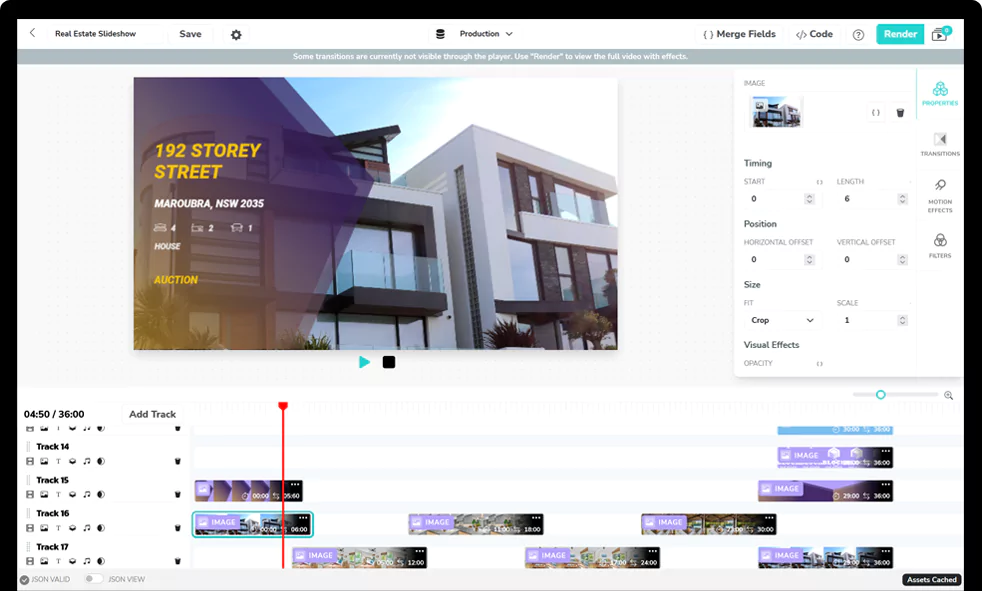
The Shotstack Studio is a browser-based bulk video editor where you can open the same template, change the layout and styling visually, and save it back. You can also export it as JSON to use with the API.
Render a Short from your script
Send the template id with your script, title and scene descriptions as merge fields. Replace SHOTSTACK_TEMPLATE_ID with the id from the previous step:
curl -X POST \
     -H "Content-Type: application/json" \
     -H "x-api-key: SHOTSTACK_API_KEY" \
     https://api.shotstack.io/edit/v1/templates/render \
     -d '{
       "id": "SHOTSTACK_TEMPLATE_ID",
       "merge": [
         { "find": "TITLE", "replace": "TypeScript classes in 30 seconds" },
         { "find": "SCRIPT", "replace": "Welcome back to Totally TypeScript. A class is a blueprint for objects. Give it fields and a constructor, and every object you create from it gets the same shape. Use a class when your objects need behaviour. For plain data, an interface is all you need." },
         { "find": "SCENE_1", "replace": "A developer at a tidy desk at night, writing code on a laptop, screen glow on their face, cinematic photograph" },
         { "find": "SCENE_2", "replace": "An architectural blueprint on a drafting table, with identical small house models built from it, soft studio lighting" },
         { "find": "SCENE_3", "replace": "Neat stacks of identical index cards on a wooden desk beside a laptop, shallow depth of field, warm light" }
       ]
     }'
The response includes the render id in response.id. To check the render, replace RENDER_ID with that value:
curl -X GET \
     -H "x-api-key: SHOTSTACK_API_KEY" \
     https://api.shotstack.io/edit/v1/render/RENDER_ID
The status is generating while the voice-over and images are made, then preprocessing, queued and rendering while the video is edited. Our test took about six minutes from request to finished video. When the status is done, download the video from the url field:
{
  "success": true,
  "message": "OK",
  "response": {
    "id": "aa448386-3dca-495c-ad30-bd90047e43c4",
    "owner": "35tqpmb0ya",
    "plan": "payg",
    "status": "done",
    "error": "",
    "duration": 15.83,
    "billable": 15.83,
    "renderTime": 22868.26,
    "url": "https://shotstack-api-v1-output.s3-ap-southeast-2.amazonaws.com/35tqpmb0ya/aa448386-3dca-495c-ad30-bd90047e43c4.mp4",
    "created": "2026-10-13T15:12:49.210Z",
    "updated": "2026-10-13T15:20:12.224Z"
  }
}
To make the next Short, send the same request with a new script, title and scenes. To run a whole content calendar, loop over your scripts and send one request each, and set a webhook to hear when each video is ready.
Swap the images for AI video clips
The images keep each Short fast and low-cost. For motion, change an image clip to a video asset with a text-to-video model such as seedance-2.0-text-to-video, and keep its length within the model’s range. Video generation takes minutes and costs more per second than an image. See AI video generation for the models and options, and pricing for rates.
How to create a YouTube thumbnail using AI text-to-image?
When you’re uploading your video, YouTube suggests thumbnails using frames from your video. You can also upload a custom thumbnail. Many YouTubers spend a lot of time on thumbnails, because the thumbnail decides whether someone clicks.
To generate one, send an image prompt to the generate endpoint. Ask ChatGPT to write the prompt from your script, or write one yourself:
curl -X POST \
     -H "Content-Type: application/json" \
     -H "x-api-key: SHOTSTACK_API_KEY" \
     https://api.shotstack.io/edit/v1/generate \
     -d '{
       "asset": {
         "type": "image",
         "prompt": "A YouTube thumbnail: a developer at a tidy modern desk writing code on a laptop, warm ambient lighting, wide shot with empty space on the left for a title",
         "model": "nano-banana-2",
         "options": { "aspectRatio": "16:9" }
       }
     }'
{
  "id": "92d2b065-e64a-5f31-9a67-8fa6c16d431e",
  "status": "queued"
}
If the status is queued, check the job with its id until it is done:
curl -X GET \
     -H "x-api-key: SHOTSTACK_API_KEY" \
     https://api.shotstack.io/edit/v1/generate/GENERATION_ID
{
  "id": "92d2b065-e64a-5f31-9a67-8fa6c16d431e",
  "status": "done",
  "url": "https://cdn.shotstack.io/au/v1/generations/35tqpmb0ya/92d2b065-e64a-5f31-9a67-8fa6c16d431e.png"
}
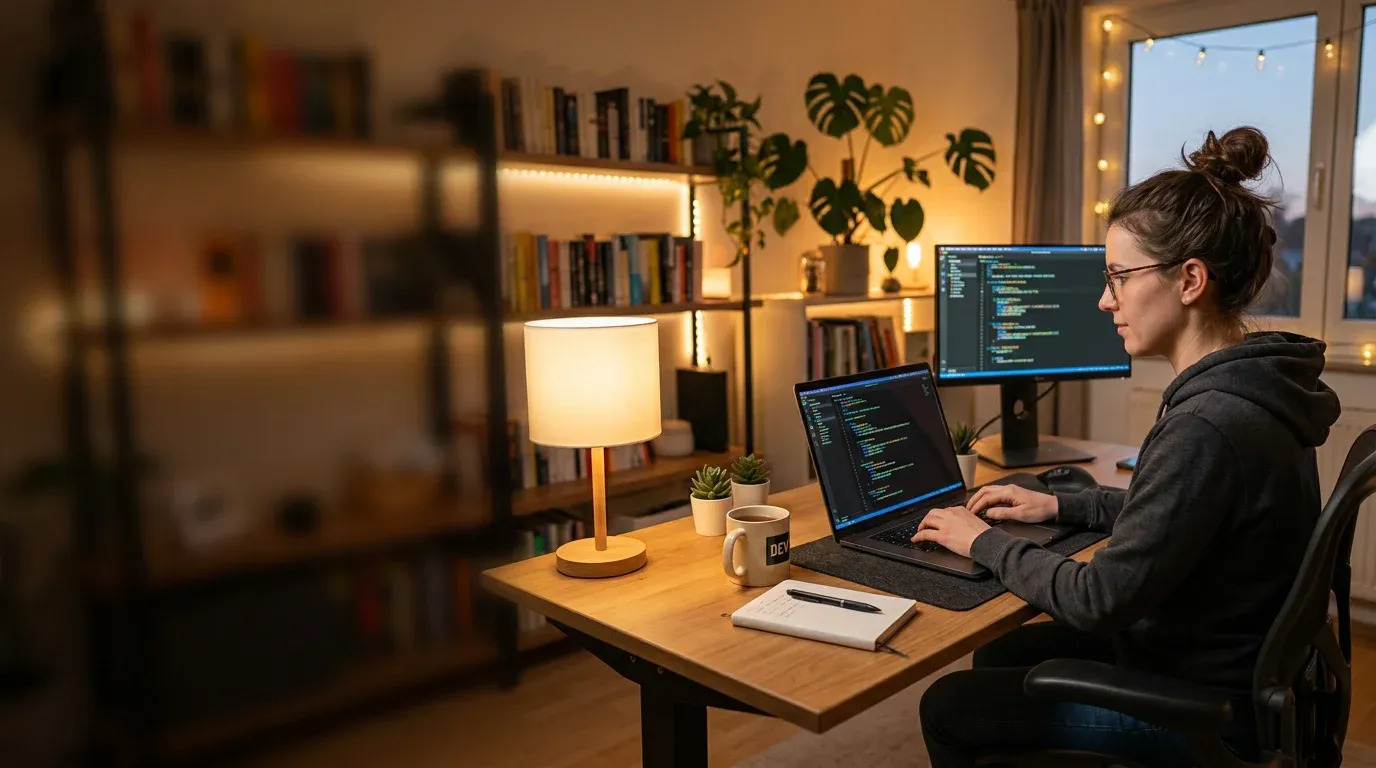
Experiment with the prompt until you have an image you like, then upload it to YouTube. To add a title, place the image in a render with a rich text asset over it and set the output format to jpg. Real fonts are spelled correctly, which generated text often isn’t.
Run it from an AI agent
You can also hand the whole workflow to an AI agent. Connect the Shotstack MCP server to Claude, Cursor or another MCP client, then ask it to write the script and render the Short with your template. The agent uses the same API calls as this guide.
Conclusion
You now have a YouTube automation with AI that runs from a script to a finished Short. ChatGPT writes the ideas and the script. One Shotstack render generates the voice-over and the visuals, adds captions and a title, and edits the video. The generate endpoint makes the thumbnail.
YouTube automation can improve your workflow as a content creator. But you also need to balance automation with your own creativity. This will help you create content that is unique and valuable for your audience. Experiment with different approaches and see what works best for you.
Frequently Asked Questions
What kind of niches work best for YouTube automation?
Niches that rely heavily on information, data, or visuals and don’t strictly require a human face often work best for the “faceless” automation model. Popular and profitable niches include:
- Educational Content (e.g., historical facts, science, coding tutorials)
- Finance and Business (e.g., stock market news, personal finance tips)
- Top 10/Listicles (e.g., facts about animals, luxury cars, world wonders)
- Relaxing/Ambience Content (e.g., nature sounds, virtual tours)
The key is finding a niche with high audience demand and an advertiser-friendly topic.
Can I use AI tools for long-form YouTube videos, or are they only for Shorts?
The principles of YouTube automation apply to both Shorts and long-form videos. For Shorts, the process is streamlined for quick, high-volume output. For long-form videos, change the output size to 1920 × 1080 and add more scenes. ChatGPT for scripting, AI voice-overs and an editing API like Shotstack still handle the time-consuming, repetitive tasks, so you can focus on strategy and adding creative value.
How much does it cost to automate a YouTube Short?
You pay for the minutes of video you render, plus each AI generation at its model’s rate. A voice-over and three images cost far less than generated video clips. A prompt that hasn’t changed reuses its earlier result at no charge. See pricing for plans and rates.
Get started with Shotstack's video editing API in two steps:
- Sign up for free to get your API key.
- Send an API request to create your video:
curl --request POST 'https://api.shotstack.io/v1/render' \
--header 'x-api-key: YOUR_API_KEY' \
--data-raw '{
  "timeline": {
    "tracks": [
      {
        "clips": [
          {
            "asset": {
              "type": "video",
              "src": "https://shotstack-assets.s3.amazonaws.com/footage/beach-overhead.mp4"
            },
            "start": 0,
            "length": "auto"
          }
        ]
      }
    ]
  },
  "output": {
    "format": "mp4",
    "size": {
      "width": 1280,
      "height": 720
    }
  }
}'

Published April 20, 2025
Benjamin Semah is a technical writer who writes extensively on video automation, YouTube tooling and how-to guides for developers. More from Benjamin
Experience Shotstack for yourself.
- Seamless integration
- Dependable high-volume scaling
- Blazing fast rendering
- Save thousands