
 Claude
 ChatGPT
 Perplexity
 Google AI
Contents
If you make video at scale, you probably have plenty of footage. What you run short of is versions: the same product shoot in another setting, another season, another shape for another channel.
Four of Luma’s models now run inside Shotstack:
- Ray 3.2 Video to Video changes how a clip looks, while its motion and performance stay as shot.
- Ray 3.2 Reframe changes a clip’s shape, such as 16:9 to 9:16, without cropping.
- Uni-1 creates 2K images from a prompt.
- Uni-1 Edit edits images you already have, so your product still looks like your product.
All four run on your Shotstack API key and credits, in the same render that adds your titles, captions and music. One shoot goes in. Finished videos come out, as many as you need.
The four models at a glance
| Model | Model ID | Starts from | What it does |
|---|---|---|---|
| Luma Ray 3.2 Video to Video | ray-3.2-video-to-video | Your video | Changes the clip’s look and keeps its motion and performance |
| Luma Ray 3.2 Reframe | ray-3.2-reframe | Your video | Changes the clip’s shape and fills in the new edges from your prompt |
| Luma Uni-1 | uni-1 | A prompt | Creates a 2K image, in nine aspect ratios from 3:1 to 1:3 |
| Luma Uni-1 Edit | uni-1-edit | Your image | Edits the image from your instructions, guided by up to eight references |
Three of the four start from something you already have. That sets them apart from the other video models in the AI model catalog, which make new footage from a prompt or a start image.
You can get each model’s options from GET /edit/v1/models?expand=options in your code.
“Our partnership with Shotstack brings Luma’s advanced image and video models directly into automated content production workflows,” says Chris Swadling, AI GTM Lead at Luma AI.
“By combining the creative capabilities of Ray 3.2 and Uni-1 with Shotstack’s video automation infrastructure, we’re enabling developers and businesses to generate, transform and deliver high-quality content at scale, all through a unified workflow.”
Restyle footage with video to video AI
Ray 3.2 Video to Video takes a clip and a prompt and changes what the viewer sees, not what happens.
- What stays: the camera move, the timing and the performance.
- What changes: whatever the prompt describes, such as the setting, the light or the style.
Luma lists the jobs it’s built for, and each one used to mean another shoot or hours in an edit suite:
- New setting. Move a scene from a studio to a beach, a street or a snowy cabin.
- Relighting. Turn a daytime shot into dusk or night.
- Product swap. Put a different product, or a different color of the same one, into the shot.
- Global campaigns. Adapt one ad for several markets.
Here’s a 5-second source clip: a concept car on a coast road in morning sun. The clip is AI-generated, and the car isn’t a real model.
Here’s the same drive in winter:
Prompt: “Winter on the same coastal highway: fresh snow on the cliffs and the roadside, soft overcast light, gentle snowfall, a dark wet road, the car’s light bar glowing white. Keep the car exactly as it is in the first frame: the same matte sage-green concept coupe with the black hood vent, the thin full-width light bar and the black lower grille. Same road, same camera move.”
And at night:
Prompt: “The same coastal highway at night: a deep blue moonlit sky, a dark silver sea, warm distant lights on the cliffs, wet asphalt, the car’s light bar glowing white and reflecting on the road. Keep the car exactly as it is in the first frame: the same matte sage-green concept coupe with the black hood vent, the thin full-width light bar and the black lower grille. Same road, same camera move.”
The camera move and the car’s position are the same in all three clips. Only the season and the light changed.
Each version also had a start image: a still of the clip’s first frame, already in its new look. We made the two stills with Uni-1 Edit, covered below. Ray 3.2 matches the start image at the first frame and carries that look through the clip, which is how the car stays the same.
On Shotstack, a variant is a prompt and a start image. Keep the source clip and change those two for each version. This function builds one edit per variant and sends each one to the render endpoint:
const SOURCE = 'https://d2jn8jtjz02j0j.cloudfront.net/luma_ray_3_2_source_clip_16x9_b8159ec7a6.mp4';

const KEEP_CAR =
  'Keep the car exactly as it is in the first frame: the same matte sage-green concept coupe with the black hood vent, ' +
  'the thin full-width light bar and the black lower grille. Same road, same camera move.';

const variants = [
  {
    name: 'winter',
    startSrc: 'https://d2jn8jtjz02j0j.cloudfront.net/luma_uni_1_edit_snow_start_frame_61ff2ac797.jpg',
    prompt:
      "Winter on the same coastal highway: fresh snow on the cliffs and the roadside, soft overcast light, " +
      "gentle snowfall, a dark wet road, the car's light bar glowing white. " + KEEP_CAR,
  },
  {
    name: 'night',
    startSrc: 'https://d2jn8jtjz02j0j.cloudfront.net/luma_uni_1_edit_night_start_frame_f24bfa52a5.jpg',
    prompt:
      "The same coastal highway at night: a deep blue moonlit sky, a dark silver sea, warm distant lights on the cliffs, " +
      "wet asphalt, the car's light bar glowing white and reflecting on the road. " + KEEP_CAR,
  },
];

function buildEdit(variant) {
  return {
    timeline: {
      tracks: [
        {
          clips: [{
            asset: {
              type: 'video',
              model: 'ray-3.2-video-to-video',
              src: SOURCE,
              prompt: variant.prompt,
              options: { resolution: '1080p', strength: 'adhere_1', startSrc: variant.startSrc },
            },
            start: 0,
            length: 5,
          }],
        },
      ],
    },
    output: { format: 'mp4', resolution: '1080' },
  };
}

for (const variant of variants) {
  const res = await fetch('https://api.shotstack.io/edit/v1/render', {
    method: 'POST',
    headers: { 'x-api-key': process.env.SHOTSTACK_API_KEY, 'Content-Type': 'application/json' },
    body: JSON.stringify(buildEdit(variant)),
  });
  const { response } = await res.json();
  console.log(variant.name, response.id);
}
Save it as variants.mjs and run it with node variants.mjs (Node 18 or later, for the built-in fetch).
Two options control how close the result stays to your footage:
startSrcis the start image, used for the first frame.strengthsets how far Ray 3.2 may move from the source. Theadherelevels keep its motion, composition and structure closely. Theflexandreimaginelevels give the prompt more room.
Each render runs in two steps:
- Shotstack generates the restyled clip from your footage, the start image and the variant’s prompt.
- It renders the finished video.
To add a headline or a logo to each version, put it on a track above the clip in the same edit.
Two variants give you two finished videos. Read the variants from a spreadsheet, a product catalog or a CMS instead of an array, and the same loop generates videos in bulk for a whole campaign.
The same edit works from an n8n workflow, or from Make or Zapier. Put the prompt in the JSON the workflow sends, and each run comes back as a finished video.
“Every platform wants a different shape,” says Derk Zomer, co-founder and CEO of Shotstack. “With Ray 3.2, our users stop cropping their best shots to fit.”
Reframe a clip for every channel
A single campaign can need three shapes:
- 16:9 for YouTube and websites
- 9:16 for Shorts, Reels and TikTok
- 1:1 for feeds
The vertical cut is usually the hardest to get from a widescreen shoot.
Cropping gets you there by throwing most of the shot away. Reframing keeps all of it:
| From a 1920 × 1080 clip to 9:16 | What you keep | What fills the rest |
|---|---|---|
| Crop | A strip 608 pixels wide, less than a third of the picture | Nothing: the edges are cut off |
| Ray 3.2 Reframe | The whole frame | New footage, generated from your prompt |
In Luma’s words, “the source video content is preserved frame-for-frame,” and the model fills the new canvas around it.
Here’s the car clip in all three shapes. The 16:9 clip is the source, and Ray 3.2 Reframe made the other two:
The whole car is in every version. The sky above it and the road below it are new.
In an edit, a reframe is one clip with a target aspectRatio. Give the output the same aspect ratio, and the finished video comes out vertical:
{
  "timeline": {
    "tracks": [
      {
        "clips": [
          {
            "asset": {
              "type": "video",
              "model": "ray-3.2-reframe",
              "src": "https://d2jn8jtjz02j0j.cloudfront.net/luma_ray_3_2_source_clip_16x9_b8159ec7a6.mp4",
              "prompt": "Extend the shot upward and downward: more clear morning sky and the sunlit cliff tops above, more of the sunlit asphalt road and its lane markings below the car. Same camera move, same light, same car.",
              "options": { "aspectRatio": "9:16", "resolution": "720p" }
            },
            "start": 0,
            "length": 5
          }
        ]
      }
    ]
  },
  "output": { "format": "mp4", "resolution": "hd", "aspectRatio": "9:16" }
}
Add your title and logo on tracks above the clip, as in any edit. Need the square cut as well? Set both aspect ratios to 1:1 and send it again.
Stills that match your product
Uni-1 creates 2K images from a prompt, in nine aspect ratios from 3:1 to 1:3. Use it for the stills around your footage: an opening frame, a background for a price card, an end card.
Uni-1 Edit starts from an image you already have, such as a product photo, a packshot or a key visual:
- Put that image first in
imageUrls. - Add up to eight references after it, such as a logo or a second angle of the product.
- Describe the change in the
prompt.
Luma says the edit “preserves composition and structure unless told otherwise,” so the product stays recognizable in the new scene.
To test it, we gave Uni-1 Edit one frame from the car clip and asked for four new scenes:
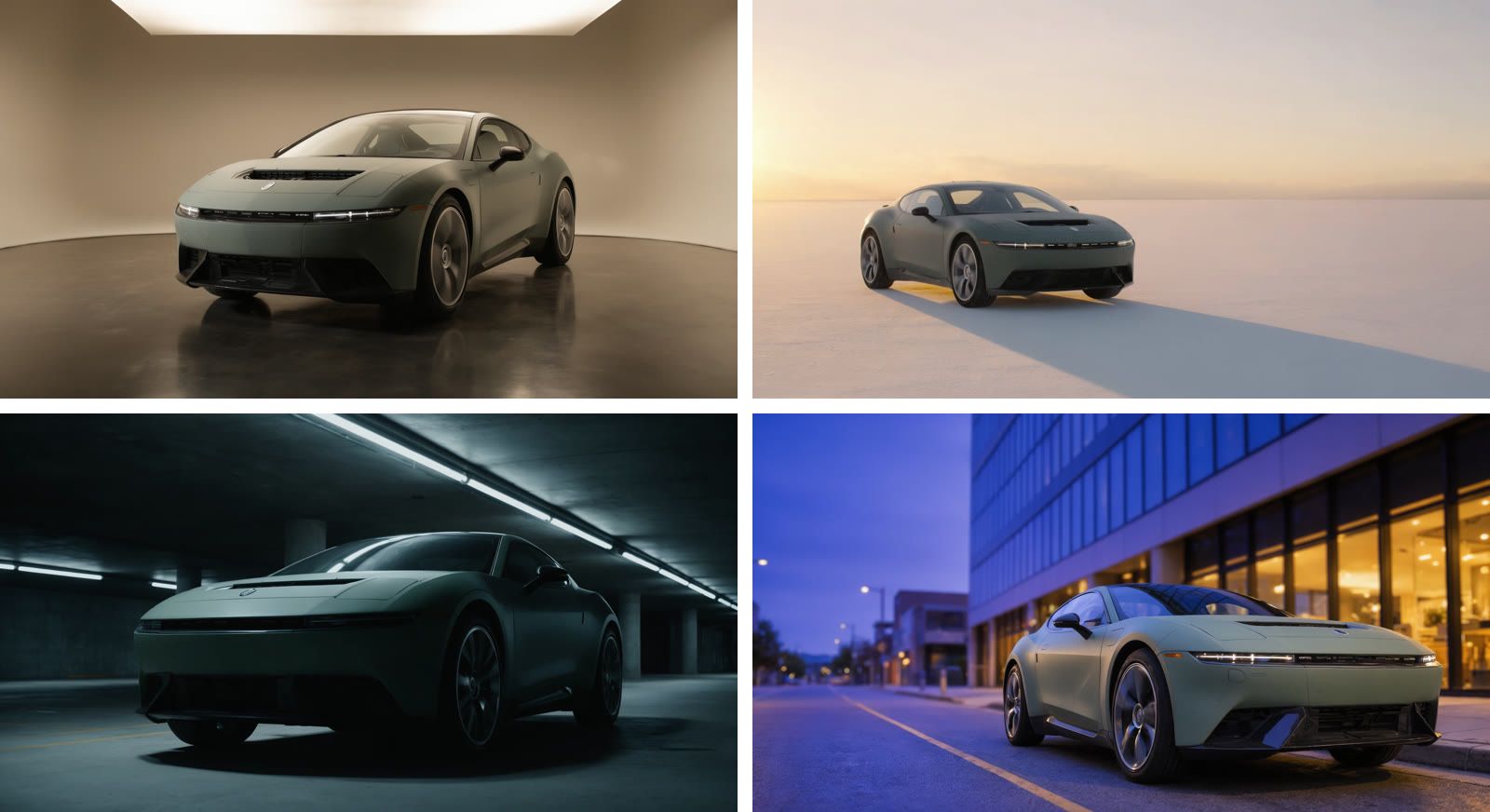
Each prompt described one scene:
- Photo studio: “a seamless warm-grey backdrop, soft overhead softbox light, a subtle reflection on a polished floor”
- Salt flat: “a vast white salt flat at sunset: warm golden light, a long shadow, a pastel sky”
- Car park: “an underground concrete car park lit by long fluorescent strip lights, cool and moody”
- City street: “a quiet city street at blue hour beside a modern glass building with warm shop lights”
All four ended with the same instruction: “Keep this exact car identical: same shape, same angle, same matte sage-green paint and thin light bar.” The body shape, the paint and the light bar carry over into every scene.
Generate once, reuse it in every edit
You don’t have to generate inside a render. Send an asset to the generate endpoint on its own, look at what comes back, and use its URL as a normal src in as many edits as you like:
curl -X POST https://api.shotstack.io/edit/v1/generate \
  -H "x-api-key: $SHOTSTACK_API_KEY" \
  -H "Content-Type: application/json" \
  -d '{
    "asset": {
      "type": "image",
      "model": "uni-1",
      "prompt": "A matte sage-green concept coupe parked on an empty coastal highway in bright morning sun, three-quarter front view, blue ocean and sandstone cliffs behind it",
      "options": { "aspectRatio": "16:9" }
    }
  }'
Then:
- Take the job
idfrom the response. - Poll
GET /edit/v1/generate/{id}untilstatusreadsdone. - Use the file at
urlas thesrcof any clip.
Generations are cached, too. If an edit includes an asset you’ve already generated, with the same model, prompt and options, Shotstack reuses the file at no charge. Change a headline and render again, and you pay for the render, not a second generation.
Generations are paid from your Shotstack credits. AI generation pricing explains how each model is charged.
New to generating inside an edit? Our guide to AI video, image, voice and music generation in the Shotstack Edit API walks through it for every model type.
One shoot, every version
Ray 3.2 gives the footage you already have new looks, new settings and new shapes, and Uni-1 makes the stills to match. Shotstack generates each piece and renders the finished, branded videos, as many as your workflow sends, on one API key.
Get a free Shotstack API key and restyle your first clip.
Frequently asked questions (FAQs)
How long can the source clip be?
Ray 3.2 makes clips of 5 or 10 seconds, and Reframe takes a source of up to 10 seconds. Shotstack generates 5 seconds when your clip is 5 seconds or shorter and 10 seconds when it’s longer, and you’re billed for the generated length. Process longer videos shot by shot.
What resolutions does Ray 3.2 output?
360p, 540p, 720p or 1080p, with 720p as the default. Vertical reframes (9:16 and 3:4) top out at 720p for now.
Can I restyle a clip I generated with another model?
Yes. Generate it first with POST /edit/v1/generate, using Seedance, Wan or any other video model on Shotstack, then use the URL it returns as the src of a Ray 3.2 clip.

Written by
Jesus Rojas is a Growth Engineer at Shotstack, combining engineering and experimentation to help developers adopt video APIs. He builds onboarding experiences, lifecycle automation and analytics. Outside work, he enjoys making music and plays several instruments.
Published November 19, 2026