
 Claude
 ChatGPT
 Perplexity
 Google AI
Contents
Paste a story into n8n and get a narrated vertical video back: six AI pictures that follow the story, a voice that reads it, word-by-word captions and music. Nobody films anything and nobody records a voice. That is what people mean by faceless videos.
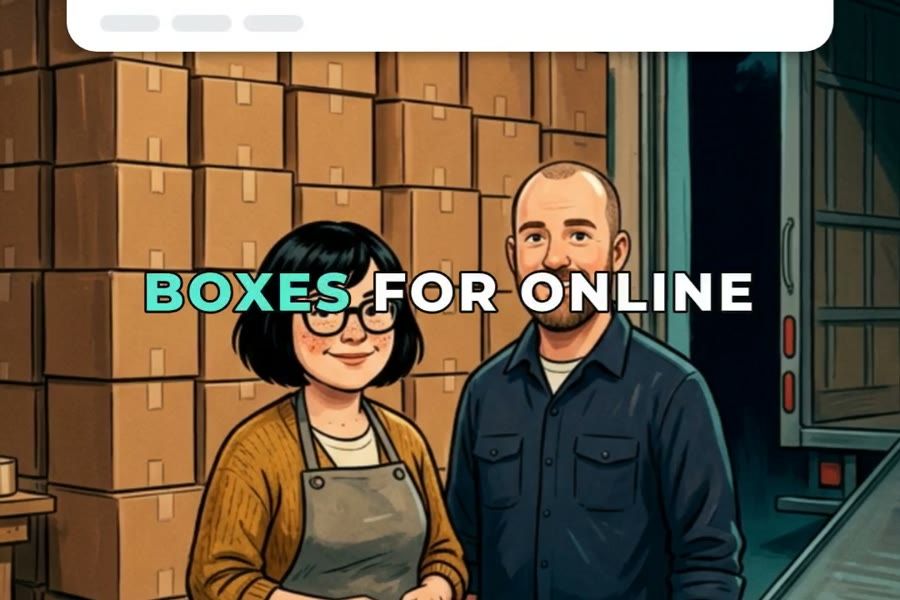
This guide shows how to make faceless videos with AI in n8n, using a free workflow template made by Shotstack. Claude reads your story and writes the whole video. One Shotstack render then makes the pictures, the narration and the finished MP4. This Short came from a 132-word story about a two-person box company:
What one story becomes
Every Short the workflow makes has the same six parts:
| Part | What you get |
|---|---|
| Title card | Your story’s title on a white card for the first three seconds, in the style of a forum post |
| Pictures | Six AI images in story order, each one slowly moving |
| Narration | An AI voice that reads the story in the first person |
| Captions | One line at a time in the middle of the frame, with the spoken word in color |
| Music | One track from Shotstack’s free music library, kept low under the voice |
| End card | ”Follow for more stories” in the last seconds |
The file is an MP4, 1080 x 1920, ready for YouTube Shorts, TikTok and Reels. The format has a very large audience: in June 2025, YouTube’s CEO said that Shorts “are now averaging over 200 billion daily views”.
These are the six pictures from the Short above:
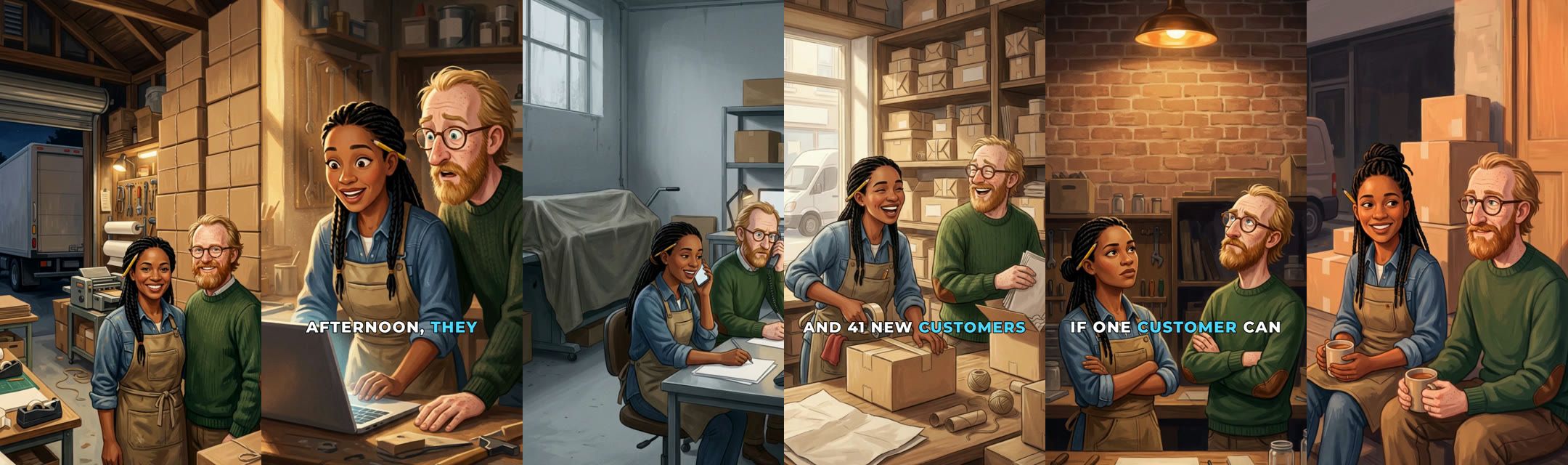
The pictures, the voice, the captions and the render all run on your Shotstack account. You don’t connect an image tool or a voice tool. The only other account is Anthropic’s, for Claude.
What you need and what a Short costs
- n8n that you host yourself, version 2 or later. The workflow saves each MP4 to a folder on the machine that runs n8n.
- A Shotstack account. Create a free account if you don’t have one; new accounts include credits.
- An Anthropic API key with credit on the account. You create it in the Claude Console.
Shotstack charges credits for what one Short generates. These are the API’s own price quotes at the time of writing:
| What | Credits |
|---|---|
| Six pictures, 0.5 each | 3 |
| Narration of 120 to 140 words | about 0.4 |
| The render | by the length of the video |
That comes to about four credits for a Short. Current rates are on the pricing page and in the AI generation pricing guide. Claude is billed by Anthropic, on your Anthropic account.
Set up the workflow
1. Install the Shotstack node
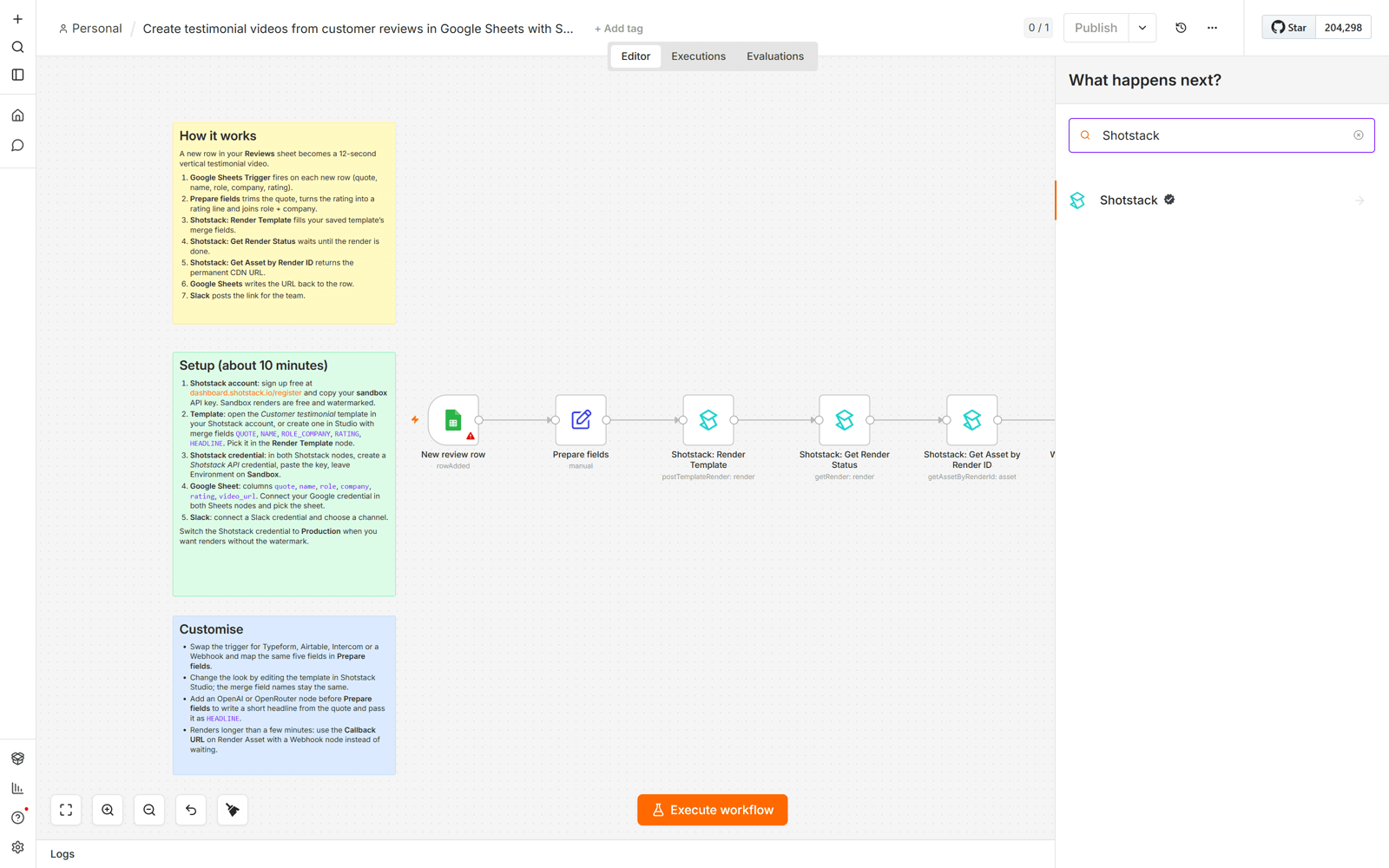
In n8n, open the nodes panel with the plus button and type “Shotstack”. Select the node under More from the community and click Install. You need to be an owner or admin of the n8n instance.
2. Add the template
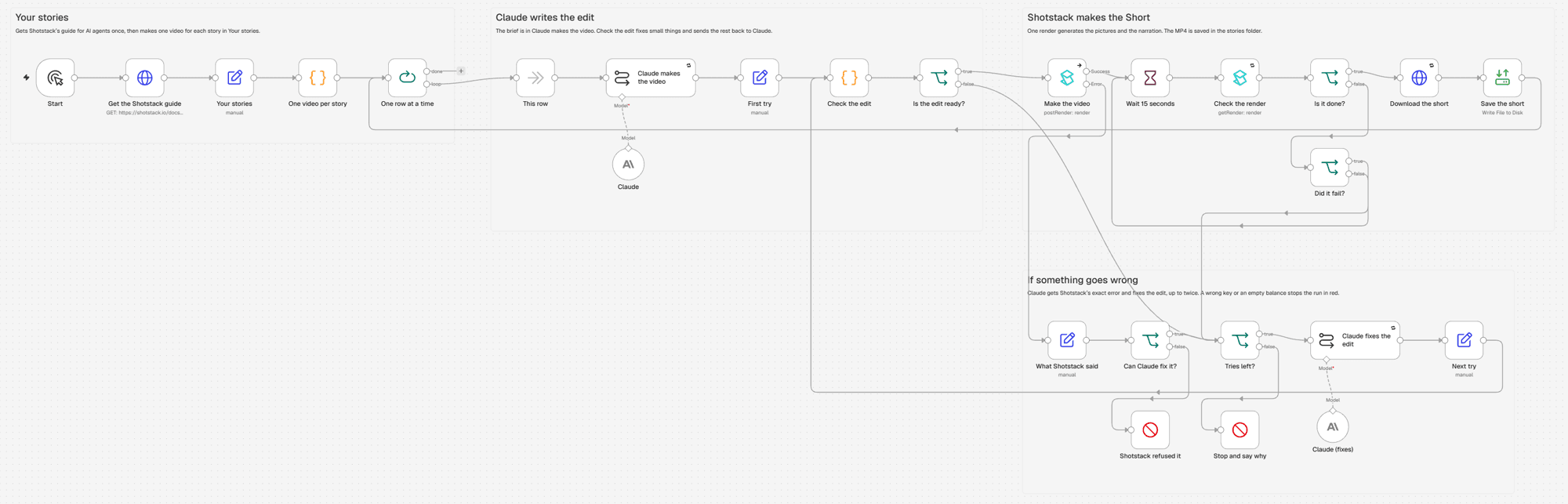
Open the story Shorts template on n8n and click Use for free. The workflow opens on your canvas with every step connected.
3. Connect Claude
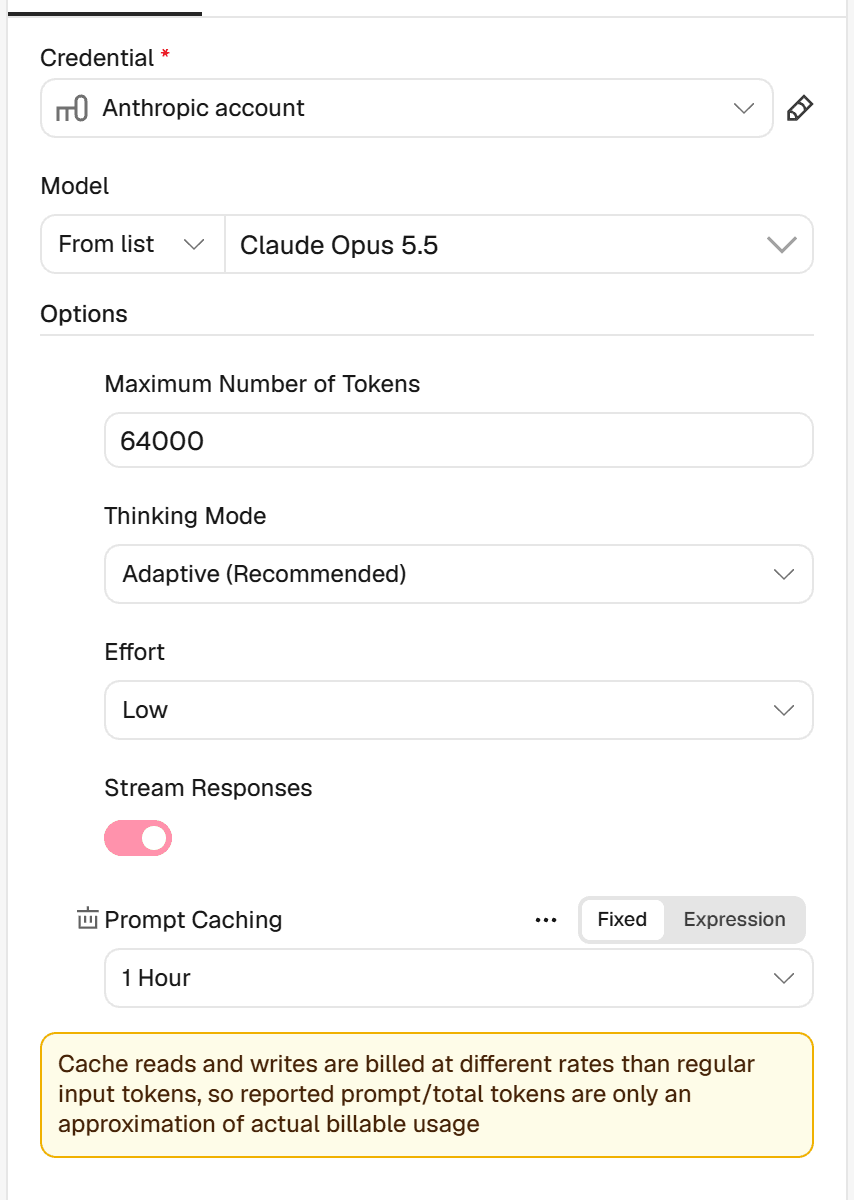
Open the round Claude step under Claude makes the video. In the credential dropdown choose Create new credential, paste your Anthropic API key and save. Leave the model and the options as they are.
Then open Claude (fixes) in the bottom row and pick the same credential.
4. Connect Shotstack
Open Make the video. In the credential dropdown choose Create new credential, paste your production API key, set Environment to Production and save. The key is under API Keys in the Shotstack dashboard.
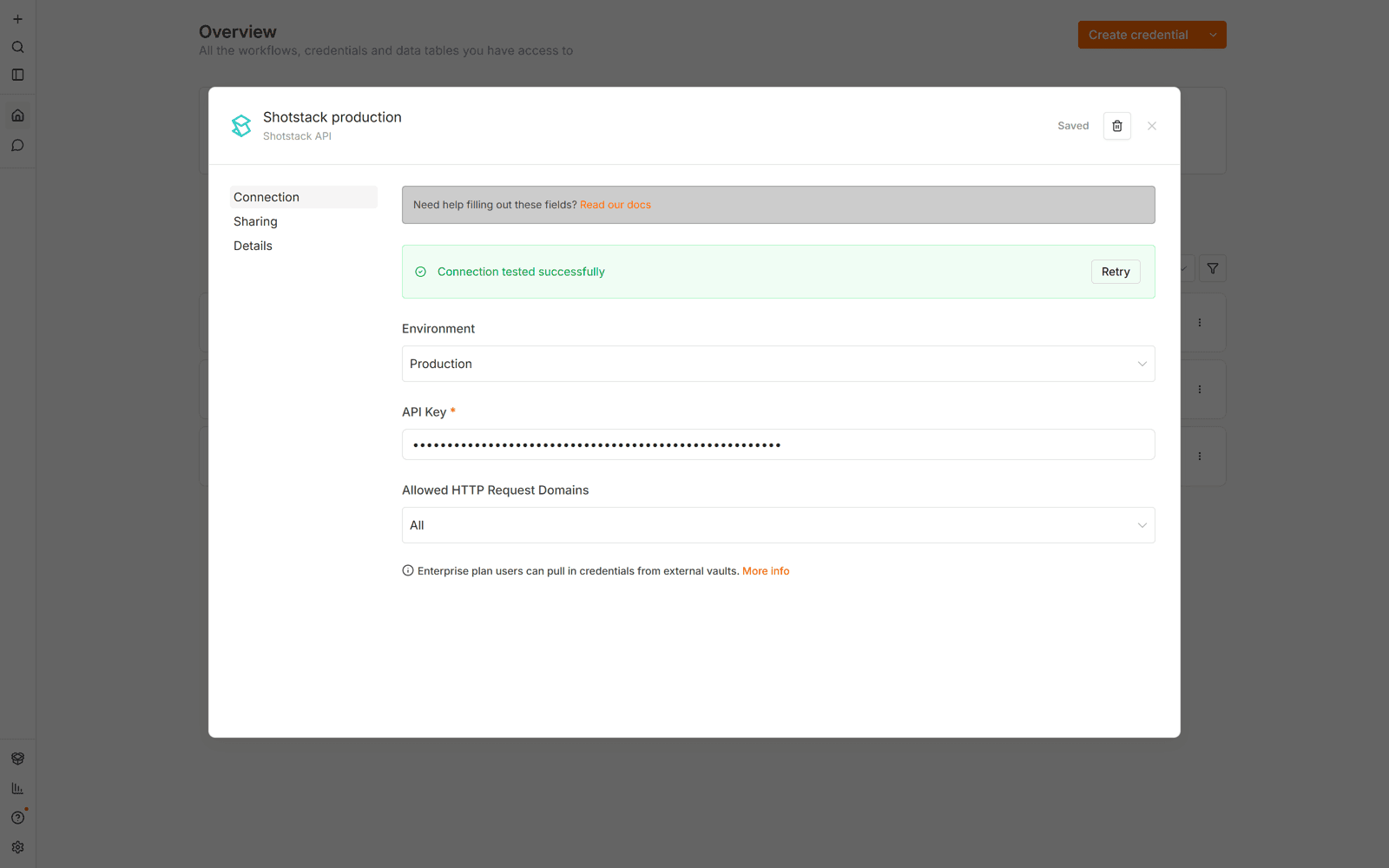
Pick the same credential in Check the render.
5. Make the folder for your Shorts
Do this before the first run. Save the short is the last step, so it runs after the video has been made and paid for. If the folder is not there, the run stops at that step.
- n8n in Docker: make a folder named
storiesinside/home/node/.n8n-files. The template already points there. - n8n installed with npm: make
.n8n-filesin your home folder, andstoriesinside it. Then open Save the short and change the start of File Path and Name to that folder, for exampleC:/Users/you/.n8n-files/stories/.
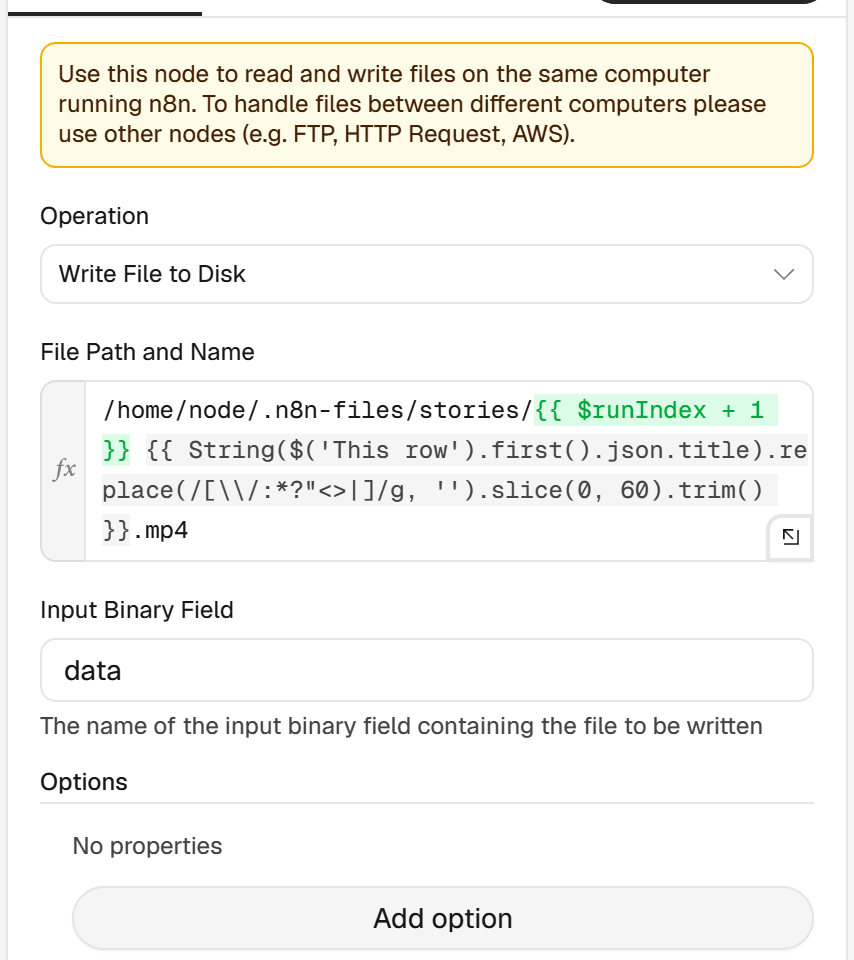
Keep the rest of the path. It names each file with a number and the story’s title.
6. Make the video as long as the story
As published, the workflow asks for a video of exactly 60 seconds. A story of 120 to 140 words takes about 40 seconds to read, so the last two pictures play with music only, after the story has ended. Three lines fix that.
The brief is the long text in Claude makes the video. The same brief is written a second time in Claude fixes the edit. In both steps, find each line on the left and replace it with the line on the right:
| Find | Replace with |
|---|---|
Make a vertical narrated story Short, exactly 60 seconds, from this story. | Make a vertical narrated story Short from this story. Its length in seconds is the number of words in the narration times 0.3, plus 4, rounded to a whole number. |
30 fps, exactly 60 seconds. | 30 fps, the length worked out above. |
Each picture holds for about 10 seconds and keeps moving | The six pictures share the length equally and keep moving |
The video is now as long as the narration, plus four seconds for the end card. The Short at the top of this guide has a 132-word narration and is 44 seconds long, and the voice ends where the end card starts.
7. Paste your story
Open Your stories. Replace the sample text with your own: the title on the first line, the story under it.
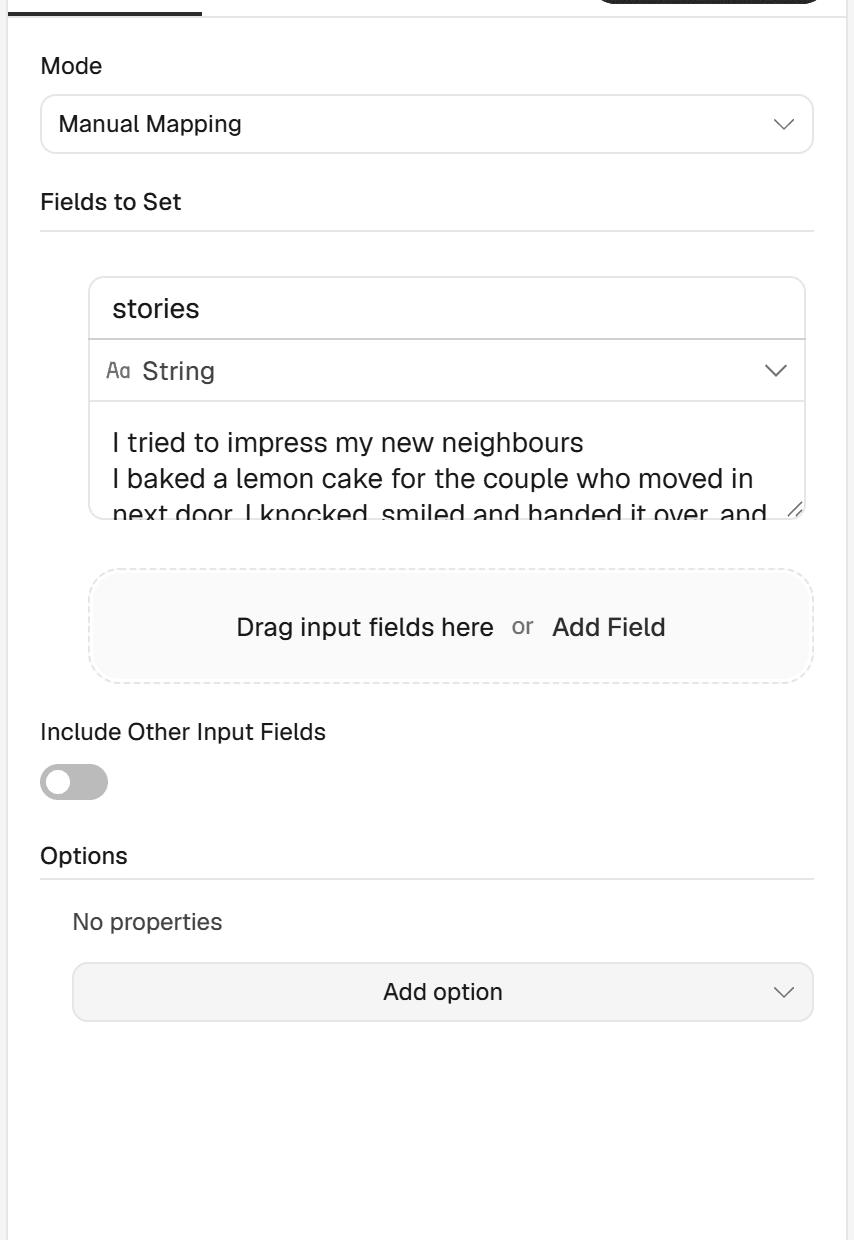
8. Run it
Click Execute at the bottom of the canvas. The steps turn green from left to right. Check the render repeats while Shotstack makes the pictures and the narration and renders the video.
What you should see: a file named 1 Your title.mp4 in the stories folder.
Write a story the workflow can use
The workflow takes any text, but a few things decide how good the Short is:
- The first line is the title. It goes on the title card and into the file name.
- Aim for 120 to 140 words. Claude is told to trim a longer story to that length and to keep the setup, the twist and the ending. A 105-word story came back as a 122-word narration: Claude read the title out as the first sentence and added a few short phrases. It added no new events.
- Tell it in the first person. The narration is written “in the teller’s own words”.
- Expect digits in the captions. A story that says “three dollars each” is captioned “$3 EACH”. The voice still reads the words.
- People in the pictures are adults. The workflow tells Claude to give every person an age.
- Use stories you wrote or have permission to use.
Make several faceless Shorts in one run
Put a line with three hyphens between stories. Each story becomes its own Short:
I raised my prices and it saved my bakery
I ran a small bakery for six years and I was always tired. ...
---
Our biggest customer left on a Friday
We were a two-person company making boxes for online shops. ...
---
I spent my ad budget on a billboard with the wrong number
I own a bicycle repair shop, and last spring ...
This is one run with those three stories:
Three things to know about a run with several stories:
- The stories are made one after the other, in the order you pasted them. The files are numbered in that order:
1 I raised my prices and it saved my bakery.mp4,2 Our biggest customer left on a Friday.mp4, and so on. - A new run starts at 1 again. Move the finished files out of the folder before the next run.
- Claude designs each Short on its own. In this run it chose one voice for the first story and another for the other two, and two different music tracks. The next section shows how to fix choices like these.
If your stories already sit in a spreadsheet or a database and you write code, the same kind of Short can be made straight from the API. Our guide to YouTube automation with AI shows that route with a saved template.
Change the Short
Everything about the Short is decided by the brief, the text you changed in step 6. As in that step, make every change in both Claude makes the video and Claude fixes the edit, or a fix brings the old instructions back.
The Short at the top of this guide was made with the first four changes below.
Keep the same people in every picture
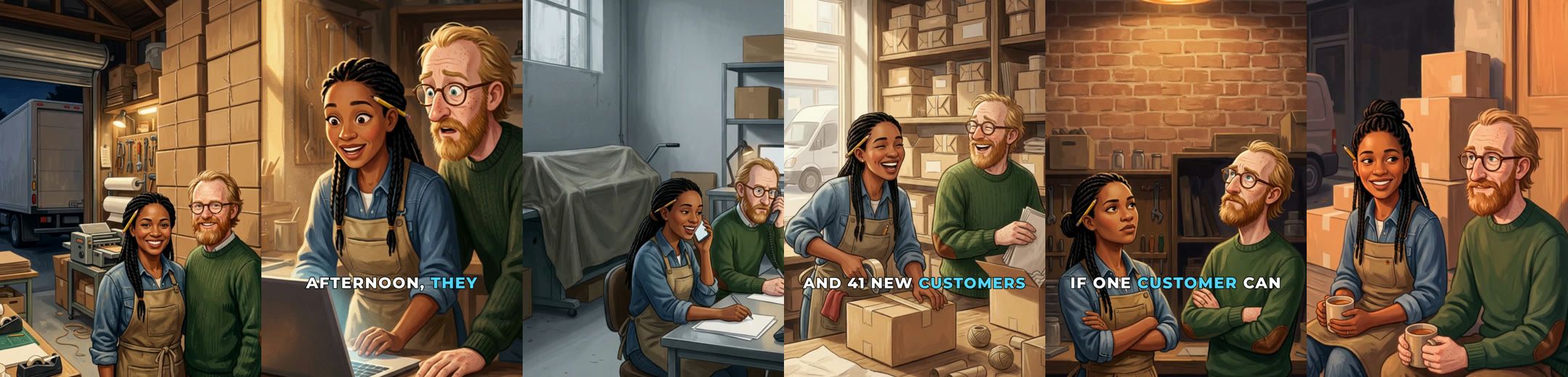
Each picture is generated on its own, so a person can change from one picture to the next. These are the six pictures of the box company story from the workflow as published:
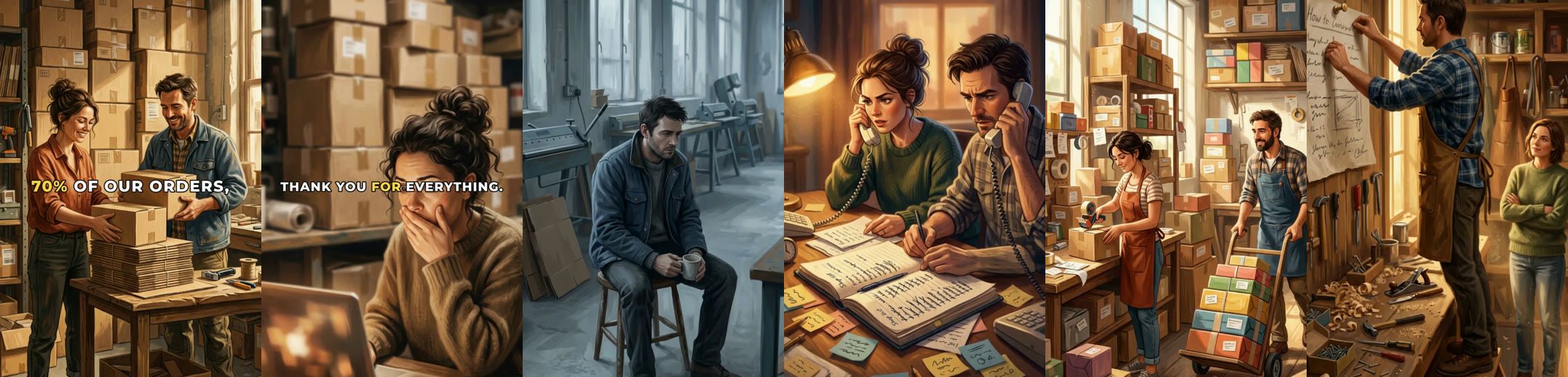
To fix it, add this line to both briefs, under the line that starts with “Generate 6 images”:
- Write one sentence that describes each main character (age, skin tone, hair, face, clothes and one feature that stands out) and repeat that sentence word for word in every picture prompt the character is in.The same story again, with that line in the brief. These are the six pictures of the Short at the top of this guide:
Choose the voice
The brief does not name a voice, so the model picks one for each story, and the voices are not equally loud. In our runs, the Shorts narrated by Sarah were much louder than the ones narrated by George or Brian.
To use one voice for every Short, find this in both briefs:
generated with elevenlabs-multilingual-v2, alias "voice"Replace it with this, with the voice you want:
generated with elevenlabs-multilingual-v2 with options voice "Sarah", alias "voice"The named voice reads every story, so choose one that fits the people who tell your stories.
Move the captions off the faces
As published, the captions sit in the middle of the frame, where they can cover a face. The end card can land there too. Two replacements in both briefs move them down:
| Find | Replace with |
|---|---|
in the middle of the frame: one line at a time | in the lower third of the frame: one line at a time |
a small end card that says | a small end card in the lower third of the frame that says |
Keep words out of the pictures
The brief asks for pictures with no words, but shop signs and labels can still appear. A stricter line helps. Find No words, logos or watermarks in them. in both briefs and replace it with this:
No words, letters, signs, labels, logos or watermarks anywhere in them: leave shop fronts, vans, boxes and screens blank.The six pictures of the Short at the top of this guide were made with that line, and none of them has a word in it.
Change the color of the spoken word
Find the spoken word in the accent colour in both briefs and name a color, for example the spoken word in #5EEAD4:
If a picture is refused, the workflow fixes it
AI image models refuse some prompts. In the three-story run above, the second picture of the third story was refused. Shotstack failed the render with this message:
The generation request was rejected by the content policy. Please revise the input and try again. Failed clip: timeline.tracks[9].clips[1] (starts at 10 s).The workflow sent that message back to Claude with the edit. Claude changed one picture prompt and nothing else, and the next render finished:
| The picture prompt | |
|---|---|
| Refused | ”…bearded bicycle mechanic staring up in shock at his giant billboard, realizing a terrible mistake, dramatic rim light…” |
| Accepted | ”…bearded bicycle mechanic in his apron looking up at his big roadside billboard with a puzzled, wide-eyed expression and raised eyebrows, one hand scratching his head, bright spring sky…” |
Claude gets two fixes for each story. The same loop also runs before anything is rendered: the Check the edit step sends the edit back if it has the wrong number of pictures, no narration, no captions or a video that is too long.
Some stops are not Claude’s to fix. Open the failed run under Executions and read the message on the red step:
| The message says | What happened | What to do |
|---|---|---|
Your credit balance is too low to access the Anthropic API | The Anthropic account has no credit. The run stops at the first Claude step, before anything is rendered. | Add credit in the Claude Console and run again. |
The file or directory does not exist on Save the short | The stories folder is missing, or the path is for another kind of install. | Follow step 5. The video is already made: its link is in the output of the last Check the render, in the field url. |
Access to the file is not allowed. on Save the short | The folder is outside n8n’s files folder. | Use the .n8n-files folder from step 5. |
More n8n video workflows
Shotstack has more n8n workflows that you can use as they are:
- n8n video automation: the main guide to the Shotstack node. Install it, make your first render and build a review form that turns customer quotes into testimonial videos.
- Real estate videos with n8n: a row in Google Sheets becomes a narrated listing tour made from the listing’s photos, with an approval email for the agent.
- Add subtitles to a video with n8n: drop a video into a Google Drive folder and get a copy with burned-in subtitles in your font and colors.
Turn every story into a faceless Short with one render
Install the node, add the template, connect Claude and Shotstack, and make the folder. From then on, a faceless video starts as a few lines of text: paste the story, run the workflow, and the Short is in your folder with its pictures, voice, captions and music.
Create a free Shotstack account to get your API key and starter credits, then open the story Shorts template on n8n.
Frequently asked questions (FAQs)
Can I use AI video clips in place of the pictures?
Not in the workflow as published. Check the edit sends back any edit that has an AI video clip, with the note “No AI video: keep the images moving instead.” Pictures keep the cost of a Short low. Shotstack does generate video, and the AI video generation guide lists the models.
Which voices can the narration use?
The narration model has 21 voices, among them Rachel, Sarah, George, Brian and Matilda. The AI speech generation guide has the full list.
Does it work on n8n Cloud?
The template is made for n8n that you host yourself, because its last step writes a file to disk. The template’s own notes say that on n8n Cloud you save the Shorts to Google Drive: replace Save the short with a Google Drive upload step.
Can it narrate in other languages?
The workflow asks for the narration “in the language of the story”, and the narration model covers 29 languages. Write the story in the language you want to hear.

Written by
Jesus Rojas is a Growth Engineer at Shotstack, combining engineering and experimentation to help developers adopt video APIs. He builds onboarding experiences, lifecycle automation and analytics. Outside work, he enjoys making music and plays several instruments.
Published November 27, 2026