
 Claude
 ChatGPT
 Perplexity
 Google AI
Contents
Some products you have to hear. A car ad without the engine is half an ad: the launch, the roar off a tunnel wall, the tires letting go. Getting that sound is usually a second job. You find it in a library, line it up with the picture and mix it in.
PixVerse V6 makes the sound with the picture, from the same prompt. Two PixVerse models now run inside Shotstack:
- PixVerse V6 Text to Video turns a prompt into a clip of 1 to 15 seconds, in eight aspect ratios, at up to 1080p.
- PixVerse V6 Image to Video starts from an image you already have and makes it move.
Both run on your Shotstack API key and credits, in the same render that adds your titles, captions and music. A prompt goes in. A finished ad comes out, with its sound already in place.
Turn the sound on for this clip:
Nobody added the engine or the echo afterwards. They came out of the prompt, with the picture.
The two models at a glance
| Model | Model ID | Starts from | Shape | Sound |
|---|---|---|---|---|
| PixVerse V6 Text to Video | pixverse-v6-text-to-video | A prompt | Eight aspect ratios, from 9:16 to 21:9 | Optional |
| PixVerse V6 Image to Video | pixverse-v6-image-to-video | Your image and a prompt | The shape of your image | Optional |
Both make clips of 1 to 15 seconds at 360p, 540p, 720p or 1080p.
They sit beside the other video models in the AI model catalog. You can get each model’s options from GET /edit/v1/models?expand=options in your code.
Write the sound into the prompt
In an edit, a PixVerse clip is a video asset with a model, a prompt and a few options. This edit makes the clip above:
{
  "timeline": {
    "tracks": [
      {
        "clips": [
          {
            "asset": {
              "type": "video",
              "model": "pixverse-v6-text-to-video",
              "prompt": "A low matte-orange concept sports car launches from a standstill and accelerates hard through a concrete tunnel at night. The camera tracks low alongside it as the tunnel lights streak past. No logos or badges. Sound: a deep engine roar that builds and echoes off the tunnel walls, with a short tire squeal at the launch.",
              "options": {
                "aspectRatio": "16:9",
                "resolution": "1080p",
                "generateAudio": true
              }
            },
            "start": 0,
            "length": 5
          }
        ]
      }
    ]
  },
  "output": { "format": "mp4", "resolution": "1080" }
}
Three things in it do the work:
- Sound is one option.
generateAudioturns it on. Leave it out and the clip is silent, at a lower price. - The prompt says what to hear. End it with the sound you want, such as “Sound: a deep engine roar that builds and echoes off the tunnel walls.”
- The clip’s length is the generation’s length. A 5-second clip asks PixVerse for 5 seconds. Anything from 1 to 15 works, and you pay for the seconds you ask for.
Each render runs in two steps. Shotstack generates the clip from your prompt, then renders the finished video. Your logo, captions or a music bed go on other tracks in the same edit.
Start from an image you already have
Image to Video takes an image and a prompt that says what happens next. Reach for it when the product has to look exactly like the product: start from a packshot, a catalog photo or a campaign still.
Here’s a still of a concept car in a showroom, made with Luma Uni-1 on Shotstack.
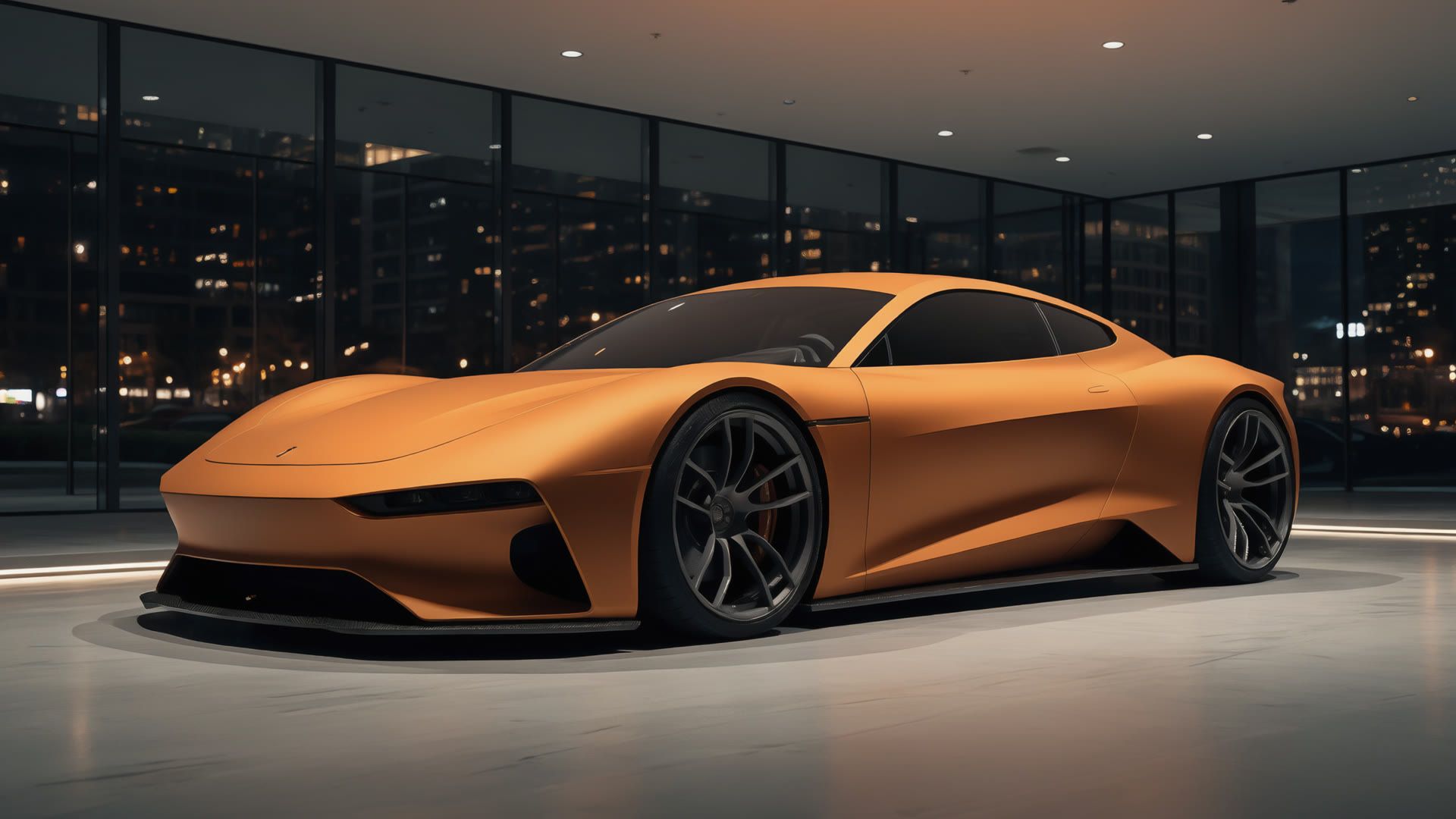
And here’s the clip PixVerse made from it:
The image goes in startSrc, as a public link:
{
  "asset": {
    "type": "video",
    "model": "pixverse-v6-image-to-video",
    "prompt": "The headlights switch on, the engine starts and the car pulls away, driving forward out of the showroom. Sound: an engine firing up with a deep rumble, one hard rev, then tires rolling over polished concrete.",
    "options": {
      "startSrc": "https://example.com/your-product-photo.jpg",
      "resolution": "1080p",
      "generateAudio": true
    }
  },
  "start": 0,
  "length": 5
}
Two rules get you a good clip:
- The clip takes the shape of the image. There’s no
aspectRatiooption on this model. A 9:16 image gives a 9:16 clip. - Ask for an event, not a mood. “The engine starts and the car pulls away” gives the model something to animate. “The photo comes to life” doesn’t.
Every shape, generated to fit
One campaign usually needs several shapes: 9:16 for Shorts, Reels and TikTok, 1:1 for feeds, 16:9 for YouTube and your website, 21:9 for a wide banner.
Cropping gets you there by cutting the shot down. A 9:16 crop of a 1920 × 1080 clip keeps a strip 608 pixels wide, less than a third of the picture.
With Text to Video you don’t crop. Each shape is generated in its own frame, so the car is framed for that shape. Here’s one prompt in 9:16, 1:1 and 16:9:
Each shape is its own generation, so the three clips aren’t crops of one another. The framing and the background differ from one to the next.
In the edit it’s the aspectRatio option. PixVerse V6 takes eight values:
| Wide | Tall | Square |
|---|---|---|
16:9, 21:9, 4:3, 3:2 | 9:16, 3:4, 2:3 | 1:1 |
Give the output the same shape as the clip. For a vertical video, that’s "output": { "format": "mp4", "resolution": "hd", "aspectRatio": "9:16" }.
One ad per product, in every shape
The same edit makes an ad for every product you sell. Take a car dealer with a lot full of models. This script takes a list of products and a list of shapes, and builds one edit for each pair: a PixVerse clip with the model’s name, a line of copy and a button on top.
It asks for the price first. Run it as it is and it prints what the whole batch costs to generate, and stops:
const API = 'https://api.shotstack.io/edit/v1';
const headers = { 'x-api-key': process.env.SHOTSTACK_API_KEY, 'Content-Type': 'application/json' };

const products = [
  {
    name: 'GT Coupe',
    line: 'Built for the fast lane',
    prompt:
      'A low silver concept coupe powers through a fast corner on a race track at golden hour. ' +
      'The camera tracks alongside it. No logos or badges. ' +
      'Sound: a high-revving engine, tires squealing through the corner.',
  },
  {
    name: 'Trail SUV',
    line: 'Goes where the road stops',
    prompt:
      'A dark green concept SUV drives down a gravel trail and splashes through a shallow river in a pine forest. ' +
      'Low camera, close to the water. No logos or badges. ' +
      'Sound: a deep engine note, gravel crunching, then a big splash.',
  },
];

const shapes = ['9:16', '1:1', '16:9'];
const LENGTH = 5;

function clipAsset(product, shape) {
  return {
    type: 'video',
    model: 'pixverse-v6-text-to-video',
    prompt: product.prompt,
    options: { aspectRatio: shape, resolution: '720p', generateAudio: true },
  };
}

function text(value, size, weight, offsetY, button) {
  return {
    asset: {
      type: 'rich-text',
      text: value,
      font: { family: 'Montserrat', size, weight, color: button ? '#111827' : '#ffffff' },
      ...(button && { background: { color: '#ffffff', opacity: 1, borderRadius: 24 }, padding: 16 }),
      ...(!button && { shadow: { offsetX: 0, offsetY: 2, blur: 12, color: '#000000', opacity: 0.7 } }),
      align: { horizontal: 'center', vertical: 'middle' },
    },
    start: 1,
    length: LENGTH - 1,
    width: 620,
    height: button ? 90 : 120,
    position: 'bottom',
    offset: { y: offsetY },
    transition: { in: 'fade' },
  };
}

function buildEdit(product, shape) {
  return {
    timeline: {
      tracks: [
        { clips: [text(product.name, 64, 800, 0.3)] },
        { clips: [text(product.line, 34, 600, 0.2)] },
        { clips: [text('Book a test drive', 30, 700, 0.08, true)] },
        { clips: [{ asset: clipAsset(product, shape), start: 0, length: LENGTH }] },
      ],
    },
    output: { format: 'mp4', resolution: 'hd', aspectRatio: shape },
  };
}

async function post(path, body) {
  const res = await fetch(API + path, { method: 'POST', headers, body: JSON.stringify(body) });
  return res.json();
}

let total = 0;
for (const product of products) {
  for (const shape of shapes) {
    const { credits } = await post('/generate/quote', { asset: clipAsset(product, shape), length: LENGTH });
    total += credits;
  }
}
console.log(`${products.length * shapes.length} clips: ${total.toFixed(2)} credits to generate`);

if (process.argv.includes('--render')) {
  for (const product of products) {
    for (const shape of shapes) {
      const { response } = await post('/render', buildEdit(product, shape));
      console.log(product.name, shape, response.id);
    }
  }
}
Save it as ads.mjs and run node ads.mjs (Node 18 or later, for the built-in fetch). For these two models in three shapes it prints:
6 clips: 10.00 credits to generateHappy with the number? Run node ads.mjs --render. Each render ID it prints becomes a finished ad. Here are the three for the GT Coupe:
The quote covers the generation. Rendering the finished video is charged as usual, by its length.
Two products are enough to show the loop. Read the list from a spreadsheet, an inventory feed or a CMS instead of an array, and the same script generates videos in bulk for the whole range.
No code? The same edit works from an n8n workflow, or from Make or Zapier. Put the prompt in the JSON the workflow sends, and each run comes back as a finished video.
What you pay for
Generations are paid from your Shotstack credits, by the second. There’s no PixVerse account to open and no second bill.
The quote endpoint the script uses works for any single clip, and it generates nothing:
curl -X POST https://api.shotstack.io/edit/v1/generate/quote \
  -H "x-api-key: $SHOTSTACK_API_KEY" \
  -H "Content-Type: application/json" \
  -d '{
    "asset": {
      "type": "video",
      "model": "pixverse-v6-text-to-video",
      "prompt": "A sports car accelerates through a tunnel at night. Sound: a deep engine roar, a short tire squeal.",
      "options": { "resolution": "1080p", "generateAudio": true }
    },
    "length": 5
  }'
The response is the price in credits:
{ "credits": 3.1945, "ceiling": false }Generations are cached, too. If an edit includes a clip you’ve already generated, with the same model, prompt and options, Shotstack reuses the file at no charge. Change a headline and render again, and you pay for the render, not a second generation.
A quote is always the price of a new generation. It doesn’t know what’s in your cache, so a batch you’ve run before costs less than the script prints.
AI generation pricing explains how each model is charged.
New to generating inside an edit? Our guide to AI video, image, voice and music generation in the Shotstack Edit API walks through it for every model type.
Picture and sound, from one prompt
PixVerse V6 gives you the clip and its sound together, from a prompt or from your own image, in the shape each channel needs. Shotstack generates each clip and renders the finished, branded ads, as many as your workflow sends, on one API key.
Get a free Shotstack API key and make your first clip with sound.
Frequently asked questions (FAQs)
How long can a PixVerse V6 clip be?
From 1 to 15 seconds, in whole seconds. A length with a fraction is priced as the next whole second, so 2.5 seconds counts as 3. For a longer video, put several PixVerse clips one after another on the same track.
Is the sound on by default?
No. A clip is silent unless you set generateAudio to true. Leave it off when the video gets a voiceover or a music track instead, and the clip costs less.
What resolutions can I generate?
360p, 540p, 720p or 1080p, with 720p as the default. Lower resolutions cost less per second, which makes 360p useful for checking a prompt before you make the final clip.
Can I choose the aspect ratio for Image to Video?
Not as an option. The clip follows the image, so crop or resize the image to the shape you need before you send it. To get several shapes from one idea, use Text to Video and set aspectRatio for each.

Written by
Jesus Rojas is a Growth Engineer at Shotstack, combining engineering and experimentation to help developers adopt video APIs. He builds onboarding experiences, lifecycle automation and analytics. Outside work, he enjoys making music and plays several instruments.
Published November 24, 2026